Last Updated on February 9, 2026 by Jawad
Introduction
Finding a cheap laptop under $300 can feel challenging, but it is completely possible to get a reliable machine that handles everyday tasks without breaking your budget. Laptops in this price range are designed for basic use, which makes them perfect for students, casual users, travelers, and anyone who needs a simple device for browsing, streaming, writing, and light multitasking. While you won’t get high-end performance or premium features, many budget-friendly models still offer surprising value with solid build quality, long battery life, and essential connectivity options.
These laptops usually come with entry-level processors, modest RAM, and eMMC or small SSD storage, but the overall experience is smoother than most people expect. They are ideal for working on documents, attending online classes, checking emails, watching videos, and using social media. Chromebooks are especially strong in this price range because they run on a lightweight operating system that doesn’t need powerful hardware to perform well. Windows laptops under $300 have also improved over the years, offering better optimization, clearer displays, and more dependable performance for general use.
One of the biggest advantages of cheap laptops is portability. Many models are slim, lightweight, and easy to carry around, making them great for school bags, office commutes, or travel. Battery life is often impressive too, with some devices lasting an entire day on a single charge. Even though these laptops may not support heavy gaming, video editing, or professional software, they deliver excellent value for simple tasks.
If you choose wisely, a laptop under $300 can be a smart and practical investment. With the right expectations and a clear understanding of your needs, you can easily find a device that fits your budget while offering reliable performance for everyday use.
We also have a recommendation of the Best 2-in-1 Laptops Under $600, so make sure to check that out too!
Top Cheap Laptop Under $300


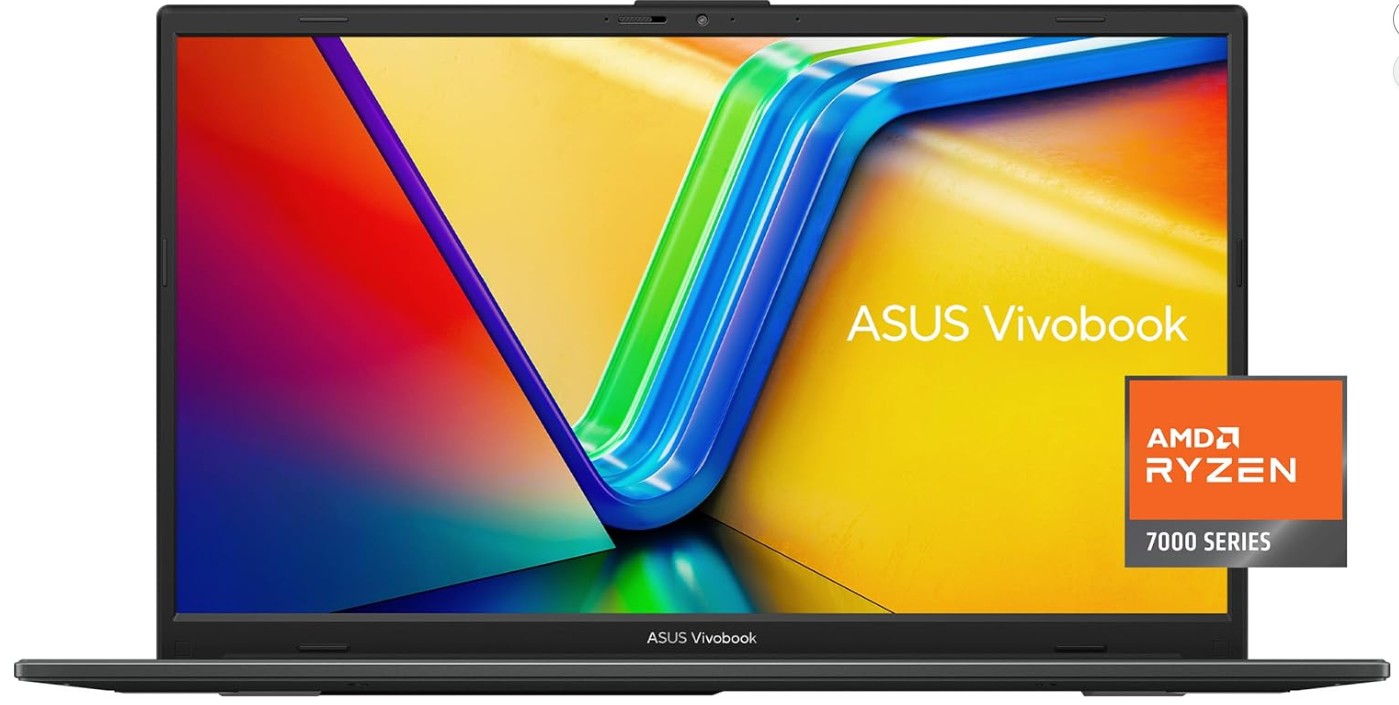
ASUS Vivobook Go 15.6” FHD Slim Laptop
ASUS Vivobook Go 15.6” FHD Slim Laptop
The ASUS Vivobook Go 15.6” is a solid budget laptop that delivers good everyday performance for the price. It comes with an AMD Ryzen 3 7320U processor and 8GB of DDR5 RAM, which helps it run smoothly for tasks like browsing, working on documents, watching videos, and handling light multitasking. The 128GB SSD is not huge, but it keeps the laptop fast when opening apps, booting the system, and transferring files. For students, remote workers, and casual users, the performance feels reliable and responsive.
The Full HD display is clear and bright enough for daily use, whether reading, streaming movies, or doing basic work. Its slim bezels make the screen look modern and more immersive. The laptop is lightweight and easy to carry, making it suitable for travel or moving between classes. Battery life is decent, and fast charging support adds extra convenience when you need power in a short time. Another useful feature is the webcam shield, which provides privacy during online meetings or video calls. The build quality also stands out, as it meets military-grade durability standards, giving extra confidence that it can handle bumps, drops, and everyday handling.
While this laptop is great for basic tasks, it is not meant for heavy gaming, advanced video editing, or demanding software. The storage space may feel limited for users who need to store large files, so using cloud storage or an external drive might be necessary. However, considering its price, it offers excellent value with modern features that are not common in cheaper models. Windows 11 runs well on the hardware, and the overall experience is smooth for day-to-day needs.
In simple terms, the ASUS Vivobook Go 15.6” is a dependable and budget-friendly choice for anyone who wants a portable and practical laptop for school, home, or office use without spending too much.
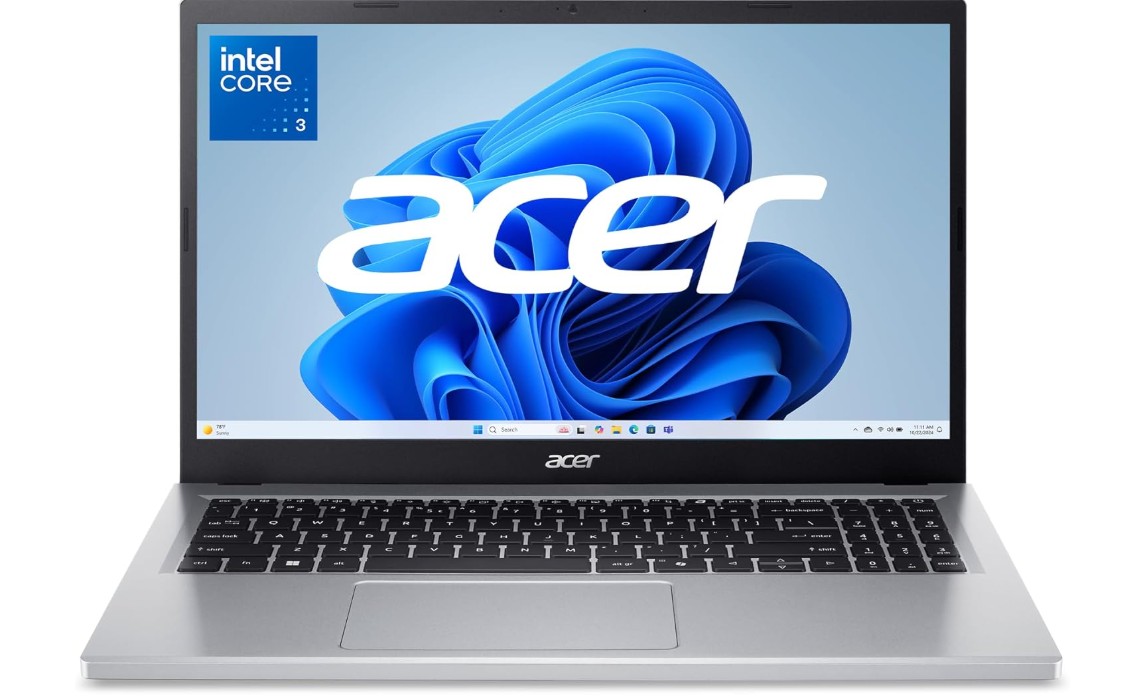
Acer Aspire Go 15 AI Ready Laptop
Acer Aspire Go 15 AI Ready Laptop
The Acer Aspire Go 15 is a simple and affordable laptop that focuses on everyday use, and it performs well for basic tasks without costing a lot. With an Intel Core 3 N355 processor and 8GB of DDR5 RAM, it can handle web browsing, online classes, writing documents, emails, and streaming videos smoothly. The 128GB UFS storage is faster than traditional hard drives, so the system boots quickly and apps open without long delays. While the storage size is limited, it works fine for light users and those who keep most of their work online.
Its 15.6-inch Full HD IPS display is a nice feature at this price, offering clear visuals, good brightness, and better viewing angles compared to cheaper screens. Movies, reading, and general work look comfortable for long use. The laptop is fairly slim and lightweight, so it’s convenient to carry for school, work, or travel. Wi-Fi 6 support ensures faster and more stable internet, which is helpful for online meetings or streaming. Windows 11 in S Mode keeps the system secure and efficient, and users have the option to switch out of S Mode if needed.
This device is not built for heavy work such as video editing, 3D software, or gaming. The processor and integrated graphics are designed for light computing only. People who need more space may also want to use cloud storage or external drives. However, as an affordable option, it still provides good value with strong battery efficiency, a sharp screen, and smooth day-to-day performance.
Overall, the Acer Aspire Go 15 is a dependable budget laptop for students, casual users, and professionals who need a simple computer for everyday tasks. It offers modern features, solid responsiveness, and comfortable viewing, making it a practical choice for anyone who wants a reliable machine without spending too much.
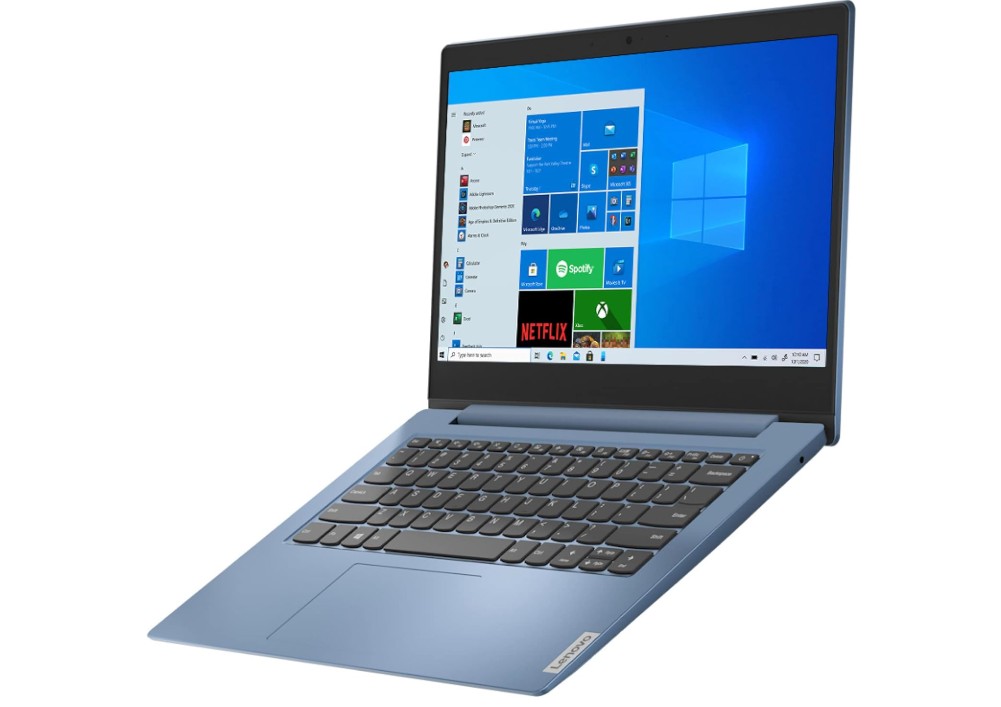
Lenovo IdeaPad 1 14 Laptop
Lenovo IdeaPad 1 14 Laptop
The Lenovo IdeaPad 1 14 is a basic, no-frills laptop designed for simple, everyday tasks, and it does those well without costing much. It uses an Intel Celeron N4020 processor and 4 GB of RAM, which makes it suitable for light work such as browsing the internet, writing documents, checking email, and streaming videos. The 64 GB of built-in storage is very limited, but for users who mostly work in the cloud or don’t store many files, it is enough. Because storage is minimal, loading times are average, but the laptop still gets the job done for simple tasks.
The 14-inch HD display has modest resolution, but it’s bright enough for reading, watching videos, or doing basic school or office work. Its smaller size and light weight make the IdeaPad easy to carry in a bag or backpack, which is a plus for students or people who move around. Booting up and starting applications feels reasonably quick for the hardware, and using Windows 10 in S Mode helps keep the system simple and secure. For users who don’t need advanced software, this makes the laptop fairly easy to manage.
Because this device is entry-level, it struggles with heavier workloads. It’s not suitable for gaming, video editing, coding large projects or running demanding software. The limited RAM and storage mean multitasking with many apps open could feel slow, and there is little room for large files or media libraries. Also, integrated graphics are weak, so any graphics-intensive applications will be a problem.
Still, the Lenovo IdeaPad 1 14 offers a budget-friendly option for users who need a light, portable laptop for basic computing tasks. If your needs are simple — like writing, browsing, and watching videos — it does its job. It’s a practical, affordable choice for students, casual users, or anyone needing a second device for light computing.
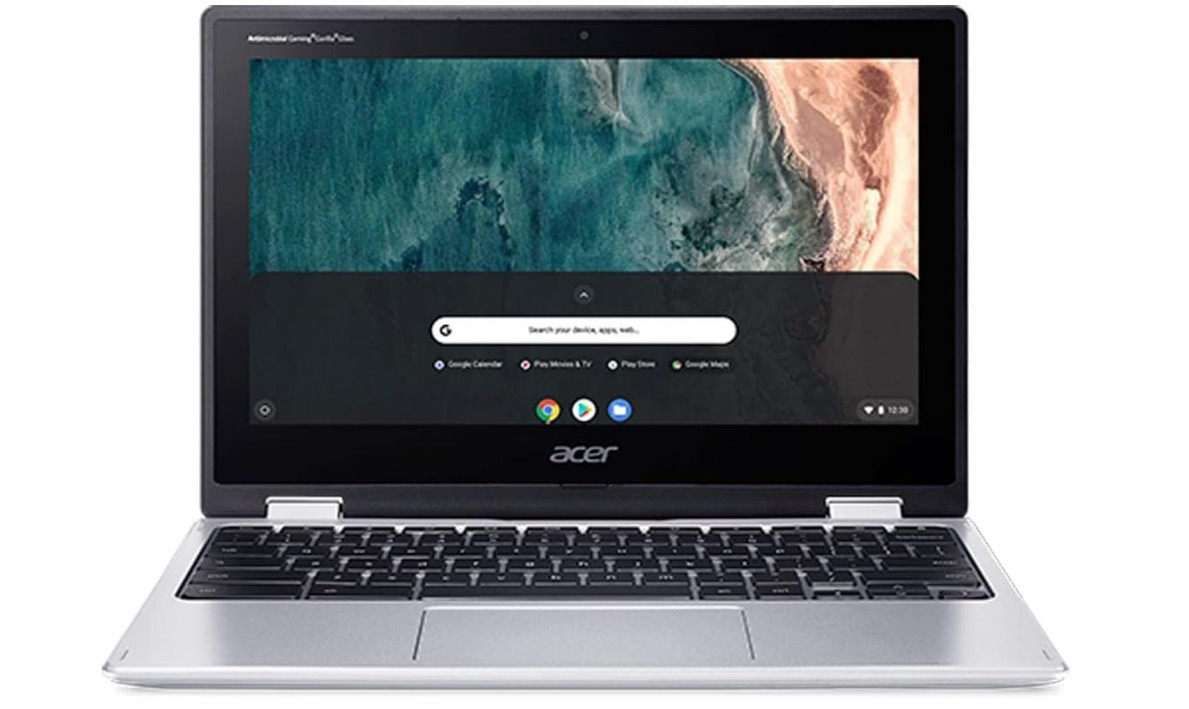
Acer Chromebook Spin 311 Convertible Laptop
Acer Chromebook Spin 311 Convertible Laptop
The Acer Chromebook Spin 311 is a compact, easy-to-use laptop that works well for light tasks, and its small size makes it especially good for travel or quick use. Because it runs on the Intel Celeron N4020 processor with 4GB of RAM and 32GB storage, it does fine for browsing the web, checking email, writing documents, and using cloud-based apps. Performance is smooth for these simple tasks — Chrome OS is designed to work efficiently even with modest hardware. Booting up and opening apps usually feels quick, and the system stays responsive under basic workloads. The small storage means it isn’t meant for storing lots of files, but given its design as a Chromebook — with cloud storage in mind — that’s manageable.
The 11.6-inch HD touch display is convenient and responsive. It’s not a high-resolution screen by modern standards, but it’s bright enough for reading, browsing, streaming videos, or video calls. The touchscreen plus 2-in-1 convertible design add flexibility: you can use it like a regular laptop, flip it to tablet mode for reading or watching media, or fold it for presentations. This versatility can be handy if you use it for school, note-taking, or casual entertainment. The device is very portable — light and small — so carrying it around in a backpack or bag is easy. Battery life tends to be decent, as Chromebooks are often optimized for energy efficiency. Connectivity features like Wi-Fi 5 and Bluetooth 5.0 also help with reliable internet and wireless device connections.
On the downside, this Chromebook is not built for heavy work. It won’t run demanding software, games, or video editing tools. The 32GB storage is extremely limited; for offline files or media libraries, you’d need external storage or rely heavily on cloud storage. The screen resolution and size may feel restricting for professional tasks or entertainment that require large displays. And while the touchscreen helps, it isn’t the most powerful machine for multitasking. For simple browsing, online classes, writing, and cloud-based apps, the Acer Chromebook Spin 311 is a good, affordable, highly portable option.
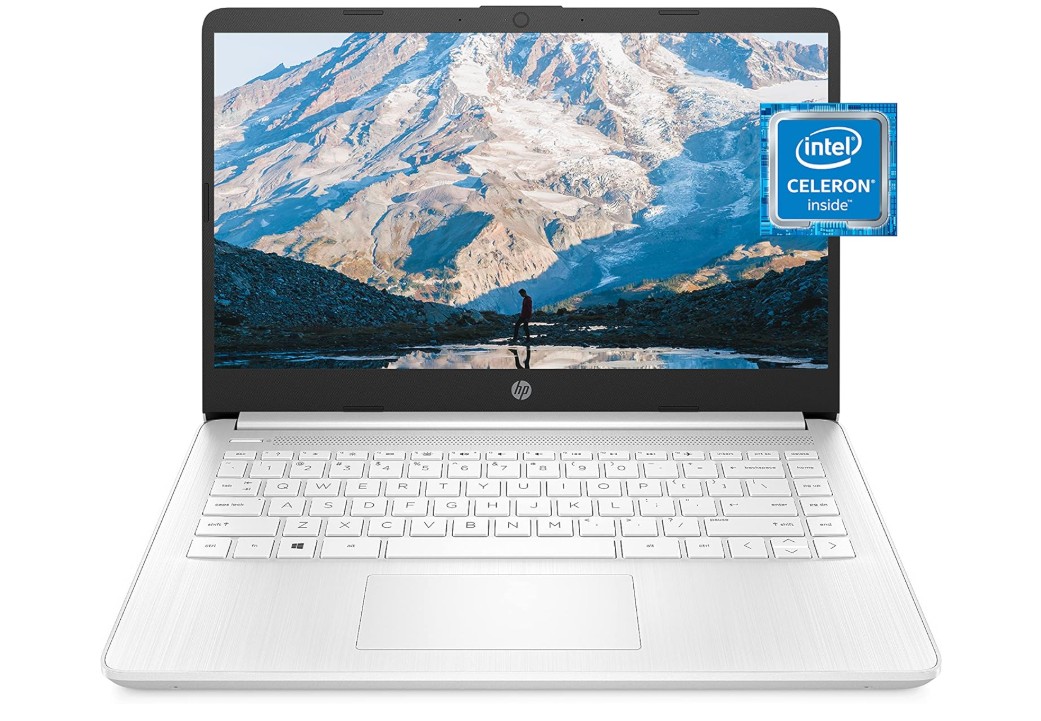
HP 14 Laptop
HP 14 Laptop
The HP 14 laptop is a lightweight, simple machine made for everyday tasks without costing too much. Because it uses an Intel Celeron N4020 processor with 4 GB of RAM and 64 GB storage, it works well for basic needs like browsing the web, writing documents, reading emails, and watching videos. Performance is acceptable for simple tasks, and Windows 11 Home runs smoothly enough without heavy demands. The 14-inch HD micro-edge display provides decent clarity for everyday use. For students, office work, or everyday browsing, the screen is bright enough to read, write, or stream comfortably.
This laptop is easy to carry thanks to its thin and portable design, which makes it handy for school, commuting, or basic travel. It boots up fairly quickly and handles light office programs or web-based applications without much trouble. Having a one-year subscription to Microsoft 365 adds some value—useful for writing, spreadsheets, and cloud-based work. For casual users or anyone who needs a simple machine for emails, online classes, browsing, and light paperwork, the HP 14 delivers good value given the low price.
However, the limitations are obvious if you try heavier tasks. The 4 GB RAM and basic processor struggle with multitasking if many apps or browser tabs are open. The 64 GB storage is quite small — you may soon run out of space if you store documents, images, or videos locally. For more demanding work like video editing, gaming, coding, or running advanced software, this laptop is not suitable. The display is only HD quality at 1366×768, so it’s not ideal for detailed graphics work or watching high-quality media. Integrated graphics are basic, so games or graphic-intensive apps are a no-go.
Overall, the HP 14 is a budget-friendly laptop that does the job well if your needs are simple and straightforward. It’s a practical choice for students, casual users, or anyone who needs a light, portable device for daily tasks.
Buying Guide: Cheap Laptop Under $300
Buying a cheap laptop under $300 can feel confusing because there are so many options and technical terms. The good news is that you can still get a useful and reliable laptop in this price range if you know what to look for and what to avoid. This guide will walk you through the most important things in simple English, so you can pick a laptop that fits your needs and budget without wasting money.
Understand what a cheap laptop can and cannot do
First, it is important to have the right expectations. A laptop under $300 is made for basic tasks, not heavy work. It is best for:
- Browsing the internet
- Watching YouTube and movies
- Writing documents and making simple spreadsheets
- Online classes and video calls
- Social media and emails
It is not the right choice for:
- High-end gaming
- Video editing and 3D work
- Heavy programming with large projects
- Professional design tools
If you only need simple everyday use, a cheap laptop is a smart choice. If you need power for professional work, you should plan to spend more.
Choose the right operating system
In this budget, you will mostly see two types of laptops:
- Windows laptops
- Chromebooks (Chrome OS)
Windows laptops are more flexible. You can install many apps and programs. They feel like a “normal” computer that can do a bit of everything. However, cheap Windows laptops sometimes feel slow if the hardware is very basic.
Chromebooks use Chrome OS and are designed mainly for online use. You use web apps and Android apps, and most of your files live in the cloud (like Google Drive). Chromebooks usually feel faster than Windows laptops with the same hardware because the system is lighter. They are great for students, online learning, and simple work.
If you need Microsoft Office, special Windows software, or offline programs, a Windows laptop is better. If you mostly use Google Docs, YouTube, Gmail, and web apps, a Chromebook is often the better choice in this price range.
Processor: Aim for “good enough”
The processor (CPU) is the “brain” of the laptop. In the under-$300 range, you will usually find:
- Intel Celeron, Intel N-series, or older Intel Core i3
- AMD Athlon or low-end AMD Ryzen 3
- ARM-based chips in some Chromebooks
For light tasks, these processors are okay. If possible, choose a newer Intel N-series or Ryzen 3 chip over very old Celeron models, as they are usually faster and more efficient. For Chromebooks, even a Celeron often works smooth enough because Chrome OS is light.
Do not expect super fast performance, but try to avoid very old or unknown processors. Always choose the newest generation you can find within your budget.
RAM: 4GB minimum, 8GB better
RAM helps your laptop run multiple apps at the same time. In this budget, you will mostly see:
- 4GB RAM
- 8GB RAM (better option when available)
4GB RAM is the bare minimum. It can handle simple tasks, but you may feel slowdowns when many browser tabs are open.
8GB RAM gives a smoother experience, especially on Windows. If you plan to keep the laptop for a few years, 8GB is a safer choice. On Chromebooks, 4GB is usable, but 8GB is still nicer if the price is not much higher.
If you can find a model under $300 with 8GB RAM, that is a strong plus.
Storage: SSD or eMMC is important
Storage affects how fast your laptop starts and loads apps. In this price range, you will see:
- 32GB or 64GB eMMC
- 128GB SSD
- Sometimes 256GB SSD on sale
Avoid old hard drives (HDD) if possible. They are slow and make the system feel laggy. Instead, try to choose SSD (Solid State Drive) or eMMC storage.
For Windows laptops, 128GB SSD is a good starting point. 64GB can work but fills up very quickly.
For Chromebooks, 32GB or 64GB storage is more acceptable because they are designed for cloud storage. Still, more storage is always better if you can get it.
You can also add cloud storage (Google Drive, OneDrive) or use a USB drive or microSD card if the built-in storage is small.
Display: Size and quality
Most cheap laptops come with HD resolution (1366×768), and some newer ones have Full HD (1920×1080). For a better viewing experience, Full HD is nicer, especially if you watch movies or work for long hours.
Common sizes:
- 11.6-inch – very portable and light, good for travel and kids, but small for long typing
- 14-inch – a good balance between size and portability
- 15.6-inch – larger screen, more comfortable to work on, but less portable
If you travel a lot or want a light laptop, go for 11.6″ or 14″. If you mostly use it at home or on a desk, 15.6″ can be more comfortable.
Touchscreen and 2-in-1 designs (that fold into a tablet) are nice bonuses, especially in Chromebooks, but not necessary if you are on a tight budget.
Battery life and portability
Battery life is very important if you study, work in cafes, or move a lot. Cheap laptops often offer between 6 to 12 hours of battery life, depending on the model and how you use it.
Chromebooks usually have better battery life than cheap Windows laptops. Check for reviews or claimed battery times and choose a laptop that can handle at least a school or work day if possible.
Also look at the weight and thickness. Thin and light laptops are easier to carry, especially for students.
Build quality, keyboard, and trackpad
In this price range, you won’t get premium metal bodies, but you can still find solid plastic builds. Look for:
- A sturdy hinge that doesn’t wobble too much
- A keyboard that feels comfortable to type on
- A trackpad that is responsive and not too small
If you plan to type a lot, a comfortable keyboard is more important than fancy features. Some laptops also offer “spill-resistant” or “military-grade durability,” which is helpful for kids or rough use.
Ports and connectivity
Even cheap laptops should have the ports you need. Common useful ones are:
- USB-A ports for mouse, keyboard, USB drives
- USB-C for charging and data (if available)
- HDMI for connecting to a TV or monitor
- Headphone jack
- microSD card slot for extra storage
Also check for Wi-Fi 5 or Wi-Fi 6 and Bluetooth, which help with fast internet and connecting wireless devices.
Webcam and audio
If you join online classes or video calls, a webcam is essential. Most cheap laptops have a basic 720p webcam, which is fine for casual use. Some models include a privacy shutter, which is a small cover for the camera for extra security.
Speakers in budget laptops are usually average. If sound is very important to you, consider using headphones or external speakers.
New vs refurbished vs used
If your budget is very tight, you might think about refurbished or used laptops.
- New laptops: Come with a full warranty and the latest software. Safest option.
- Refurbished laptops: Checked and repaired by the seller or maker. Often cheaper with some warranty. Can offer better specs for the same price.
- Used laptops: Sold by individuals, usually with no warranty. Cheaper but more risky.
If you go for refurbished, buy from a trusted seller and check the warranty period. It can sometimes let you get a stronger laptop for under $300.
Final tips before you buy
- Make a list of what you really need: size, OS, battery, storage.
- Decide if you prefer Windows or Chromebook based on your apps.
- Try to get at least 4GB RAM (8GB is better) and SSD or eMMC storage.
- Read a few user reviews to see real-life experiences.
- Don’t chase fancy features if they push the price too high; focus on performance and reliability.
A cheap laptop under $300 will not be perfect, but it can still be a smart and useful purchase for everyday tasks. If you match the laptop to your real needs and follow these points, you can find a budget-friendly machine that serves you well for studying, working, and staying connected.
FAQs
Yes — you can find laptops that handle basic tasks like web browsing, emails, video calls, streaming, and schoolwork at this price. Expect compromises like modest performance and simpler builds.
Aim for at least 4 GB RAM, some form of SSD/eMMC storage, and a screen of 1366×768 or better. Battery life of 6–10 hours is ideal for everyday use.
Yes — they’re fine for browsing, writing, video calls, and light productivity. They’re not suited for heavy software (like video editing, CAD, or gaming)
Yes — refurbished laptops with better specs (older business models) can offer much better performance than new budget ones, but check warranty and battery condition.
Sometimes — but many cheap laptops use soldered RAM or eMMC storage that cannot be upgraded. Always check before buying.
Expect only very light, browser-based games. Full gaming or graphic-intensive software isn’t realistic in this price range.
Concluison
A laptop under $300 is a smart choice for basic needs like online classes, web browsing, emails, and document work. Most options in this range are Chromebooks or entry-level Windows laptops, which offer decent performance, long battery life, and good portability for students and everyday users. While they’re not built for gaming or heavy software, they deliver great value for simple tasks. If you choose a model with an SSD (or fast eMMC), enough RAM, and solid battery life, a budget laptop under $300 can easily handle daily use without breaking the bank.

Jawad is a passionate tech enthusiast and writer who loves exploring the latest trends in hardware, gadgets, and digital innovation. With a sharp eye for performance and value, he delivers in-depth recommendations and buying guides to help readers make smarter tech decisions.