Last Updated on February 10, 2026 by Jawad
Choosing the right monitor is one of the most important decisions you’ll make as a programmer. While high-end displays with ultra-wide screens and 4K resolution can be appealing, budget monitors often provide the best balance of clarity, comfort, and value—especially if you’re setting up a home office or tightening your tech budget. A good budget monitor doesn’t mean compromising on productivity; instead, it means finding a display that amplifies your workflow without draining your wallet.
For programming, screen real estate and text clarity are key. You’ll be spending hours reading, writing, and debugging code, so a display that supports crisp text rendering, comfortable viewing angles, and stable ergonomics can dramatically improve your daily experience. Budget monitors today often include IPS panels, which deliver wider viewing angles and better color consistency compared to older TN panels. This makes them ideal for long coding sessions, reducing eye strain and making text easier to read from different seating positions.
Resolution plays a major role too. While 1080p (Full HD) remains a solid choice in smaller sizes (24″–27″), many budget options now offer QHD (2560×1440) resolution at affordable prices. The higher pixel count increases workspace, letting you place multiple windows side-by-side—a huge advantage for developers who work with IDEs, terminal windows, and documentation simultaneously.
Another important factor for programmers is eye comfort. Features like flicker-free backlights and low blue light modes help reduce fatigue during long sessions, making budget monitors surprisingly good companions for marathon coding days. Some also include ergonomic stands or VESA mount compatibility, allowing you to adjust height, tilt, and orientation for a healthier posture.
Ultimately, the best budget monitor for programming is one that delivers clear text, ample workspace, and features that support your workflow, all without breaking the bank. With careful selection, you can build a productive, comfortable coding setup on a budget.
We also have a recommendation for the Best Monitors for Students, so make sure to check that out too!
Top Budget Monitors for Programming


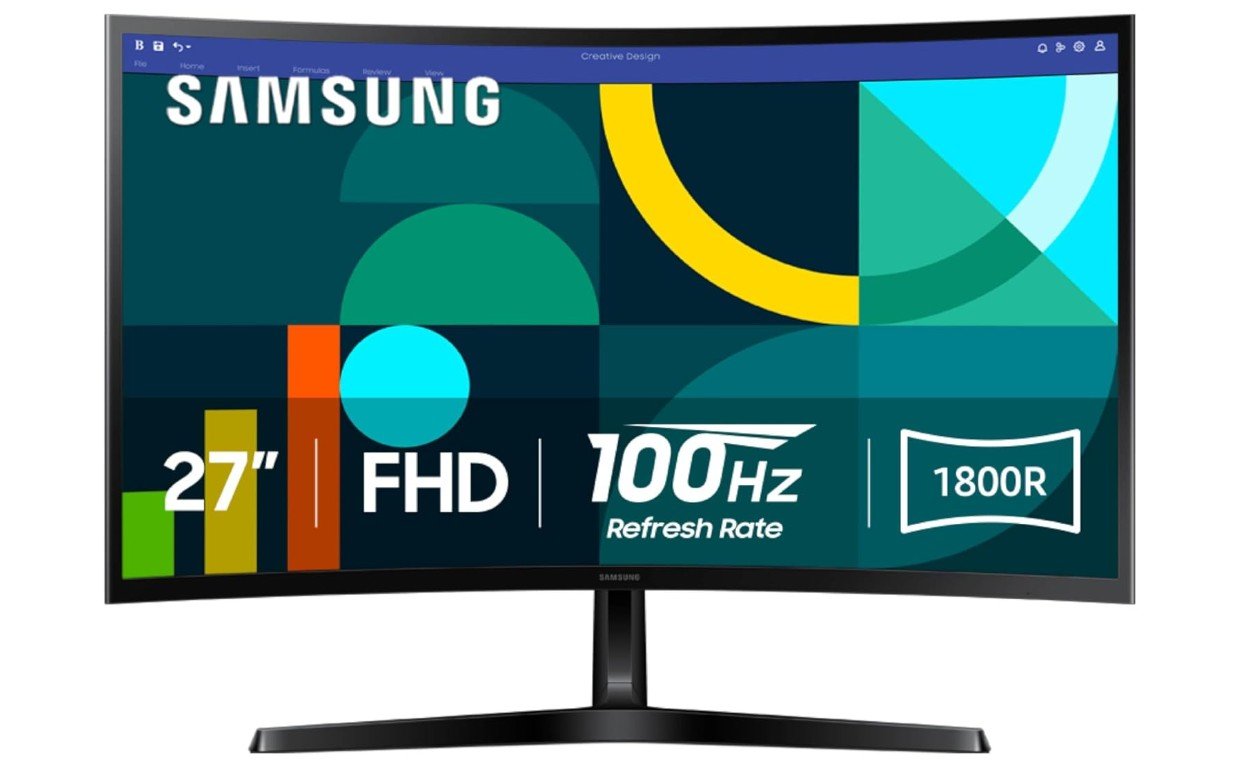
Samsung 27″ Essential S3 (S36GD) Series Curved Computer
Samsung 27″ Essential S3 (S36GD) Series Curved Computer
The Samsung 27″ Essential S3 (S36GD) is a solid budget monitor for programming and everyday computer work. It is designed for people who spend long hours in front of the screen and need a comfortable and reliable display without paying a high price. The 27-inch screen size feels spacious and gives you plenty of room to view code, terminal windows, and documentation side by side. This makes multitasking easier and reduces the need to constantly switch between windows.
The Full HD resolution is clear enough for coding, especially on a 27-inch screen. Text looks sharp and readable, which is important when you are reading lines of code for many hours. The curved 1800R design gently wraps around your field of view, helping you stay focused and making the screen feel more immersive. For programming, this curve can reduce eye movement when scanning long lines of code or working with split screens.
One of the best features for programmers is the Advanced Eye Comfort technology. The monitor includes flicker-free performance and low blue light modes, which help reduce eye strain during long coding sessions. This is very useful for students, developers, or remote workers who code late at night or work full days on their computer. The 100Hz refresh rate also makes scrolling through code and web pages feel smoother than standard 60Hz monitors.
Connectivity is simple and practical. The HDMI and D-sub ports make it easy to connect to both modern and older PCs or laptops. Overall, this monitor offers a comfortable viewing experience, a large screen, and useful eye-care features, making it a good budget choice for programming, learning to code, and general office work.
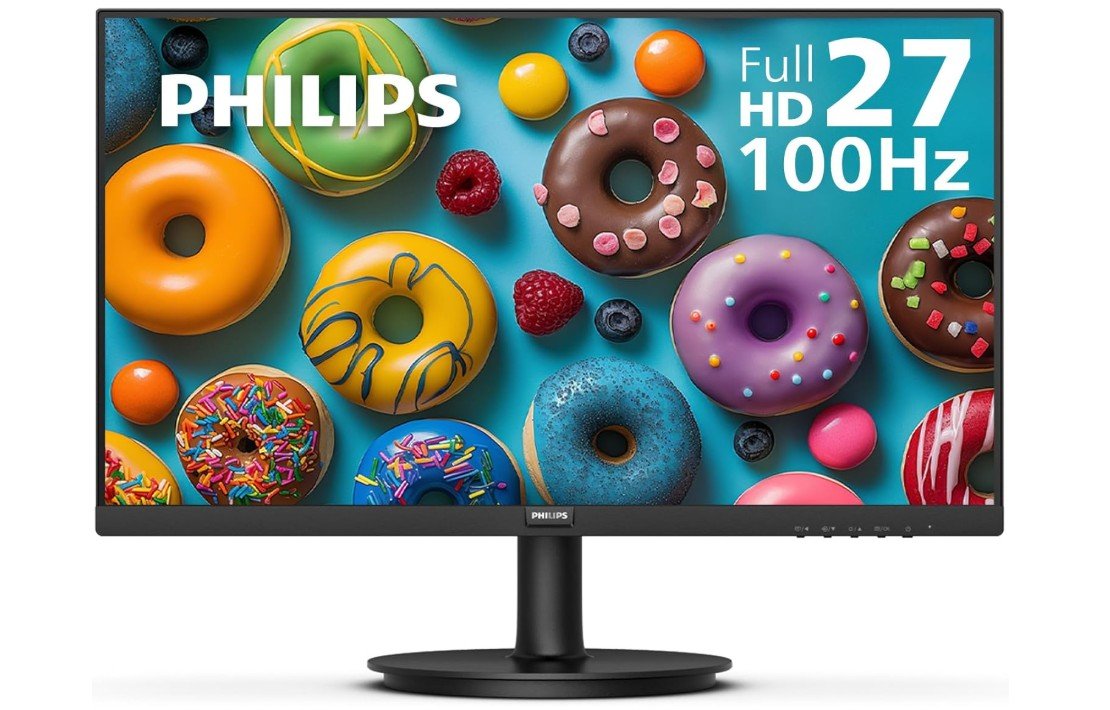
Philips New 27-inch Class Thin Full HD Monitor
Philips New 27-inch Class Thin Full HD Monitor
The Philips 271V8LB is a good budget monitor for programming, studying, and everyday office work. It is made for users who want a large screen, comfortable viewing, and reliable performance without spending too much money. The 27-inch display gives you plenty of space to work with code editors, terminals, and browsers at the same time. This extra screen space is very helpful for programmers who often multitask or compare files side by side.
The Full HD resolution is suitable for most programming tasks. Text appears clear and readable, especially when using standard code editors and IDEs. While it is not as sharp as a QHD monitor, it still does a good job for daily coding, web development, and learning to program. The 100Hz refresh rate makes scrolling through long code files and web pages smoother, which feels more comfortable than a basic 60Hz screen.
Eye comfort is one of the strong points of this monitor. Philips includes flicker-free technology and a low blue light mode, which helps reduce eye strain during long coding sessions. This is especially useful if you spend many hours in front of the screen or work late at night. For students, remote workers, and beginner programmers, this feature can make a noticeable difference in comfort over time.
The monitor has a simple and clean design with thin bezels, making it look modern on a desk and suitable for multi-monitor setups. Connectivity is basic but practical, with HDMI and VGA ports that work with both new and older computers. VESA support also allows easy mounting on an arm or wall.
Overall, the Philips 271V8LB is a reliable and affordable choice for programming. It focuses on comfort, screen size, and smooth performance, making it a solid option for anyone building a budget-friendly coding setup.
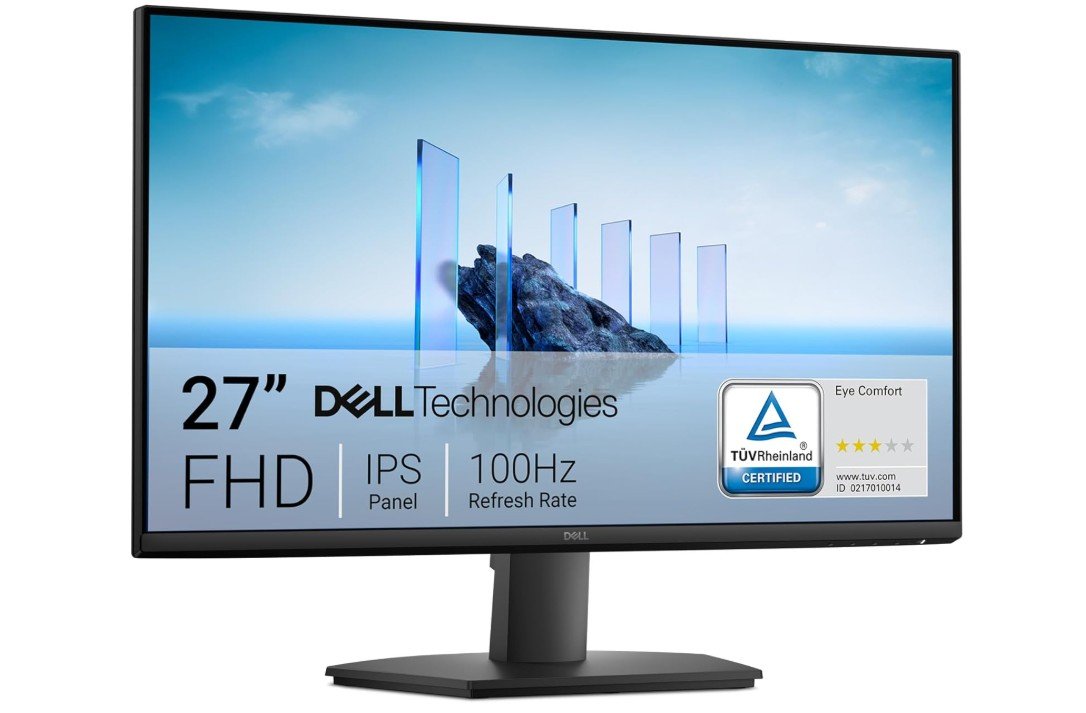
Dell 27 Monitor – SE2725HM
Dell 27 Monitor – SE2725HM
The Dell SE2725HM is a good choice for programming and everyday computer work, especially if you want a clear and comfortable screen without spending too much. The 27-inch size gives you plenty of space to work with your code editor, browser, and terminal all at once. This extra space makes it easier to multitask and reduce switching between windows, which can improve your workflow and save time.
The Full HD resolution on this size is clear enough for most coding tasks. Text looks sharp and readable, so you can spend long hours reading and writing code without needing to zoom in. The IPS panel also gives wide viewing angles, which means the colors and brightness stay consistent even if you look at the screen from different positions. This is useful when you adjust your chair or sit back to think through a problem.
One of the features that help reduce eye strain is ComfortView Plus, which lowers blue light and provides a more natural view. The anti-glare screen also helps keep reflections down, so you can work comfortably even in bright rooms. These features are especially helpful for programmers who spend many hours in front of the screen.
The 100Hz refresh rate makes scrolling through code, web pages, and project files feel smooth. It isn’t a gaming monitor, but this boost over 60Hz adds a nicer feel to everyday use. Connectivity is simple and practical, with HDMI and VGA ports that support both modern and older computers. The design is clean and minimal, so it fits well in home offices or desk setups without taking too much space.
Overall, the Dell SE2725HM offers a comfortable and reliable viewing experience for programming. It has a large, readable screen, good eye-care features, and smooth performance that make coding more pleasant without costing too much.
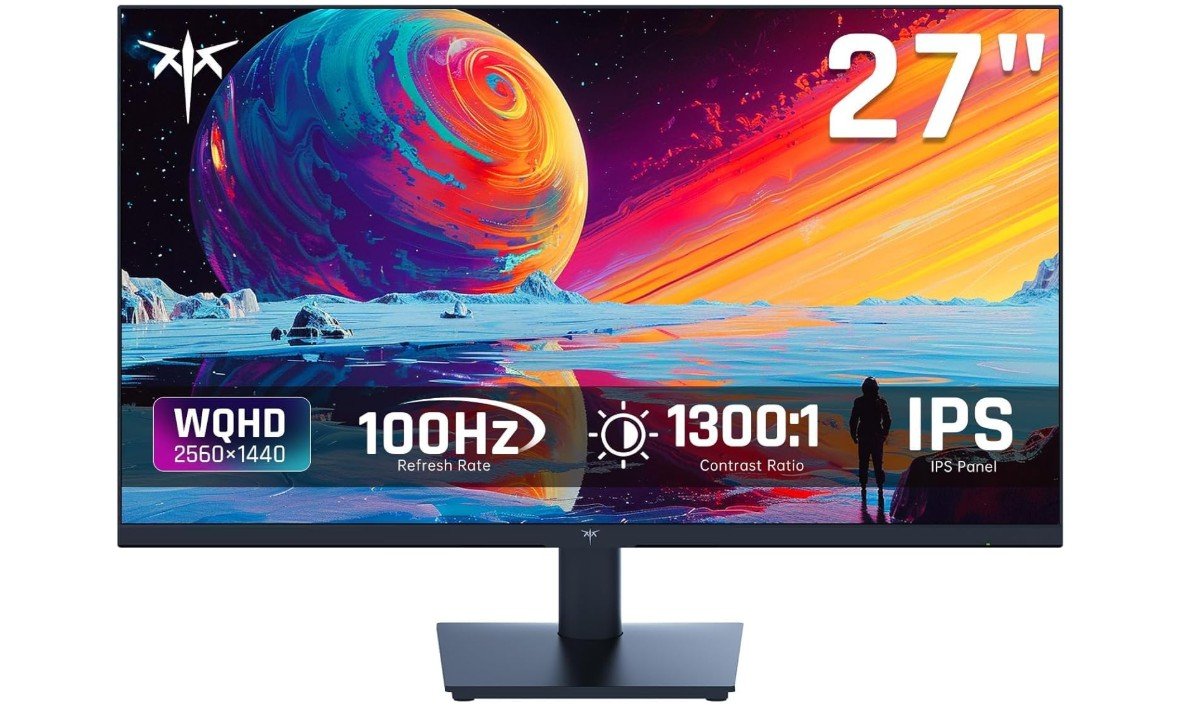
KTC 27 Inch QHD 100Hz Computer Monitor
KTC 27 Inch QHD 100Hz Computer Monitor
The KTC 27 Inch QHD Monitor is a strong choice for programming if you want a clear, sharp view of your code and enough space to work comfortably. The 27-inch screen with QHD resolution (2560×1440) gives you more pixels than a regular Full HD monitor. This means text looks sharper and clearer, which helps reduce eye strain when you read or write code for long hours. You will also have more space on the screen to place multiple windows side by side, which is useful when you are using an IDE, browser, and terminal at the same time.
The IPS panel ensures good viewing angles and consistent colors. With programming, you often shift your seating position or look at the screen from slightly different angles. The IPS panel keeps the screen easy to see without colors or text fading or washing out. The monitor also supports a wide color range, which is nice if you also do some design work or watch videos in your free time, though this is not important for pure coding.
The 100Hz refresh rate makes scrolling through code, files, and web pages feel smooth and fluid. It is not only good for casual gaming but also makes moving between long lines of code feel more pleasant. Eye comfort is also considered with the anti-blue light feature, which helps reduce eye fatigue during long work sessions.
Connectivity and setup are simple, and the design is clean and modern, fitting well on any desk. Although it does not have all advanced ports, it covers essential needs well. Overall, this monitor gives good clarity, smooth performance, and comfortable viewing, making it a great option for programmers looking for a budget-friendly but high-quality display.
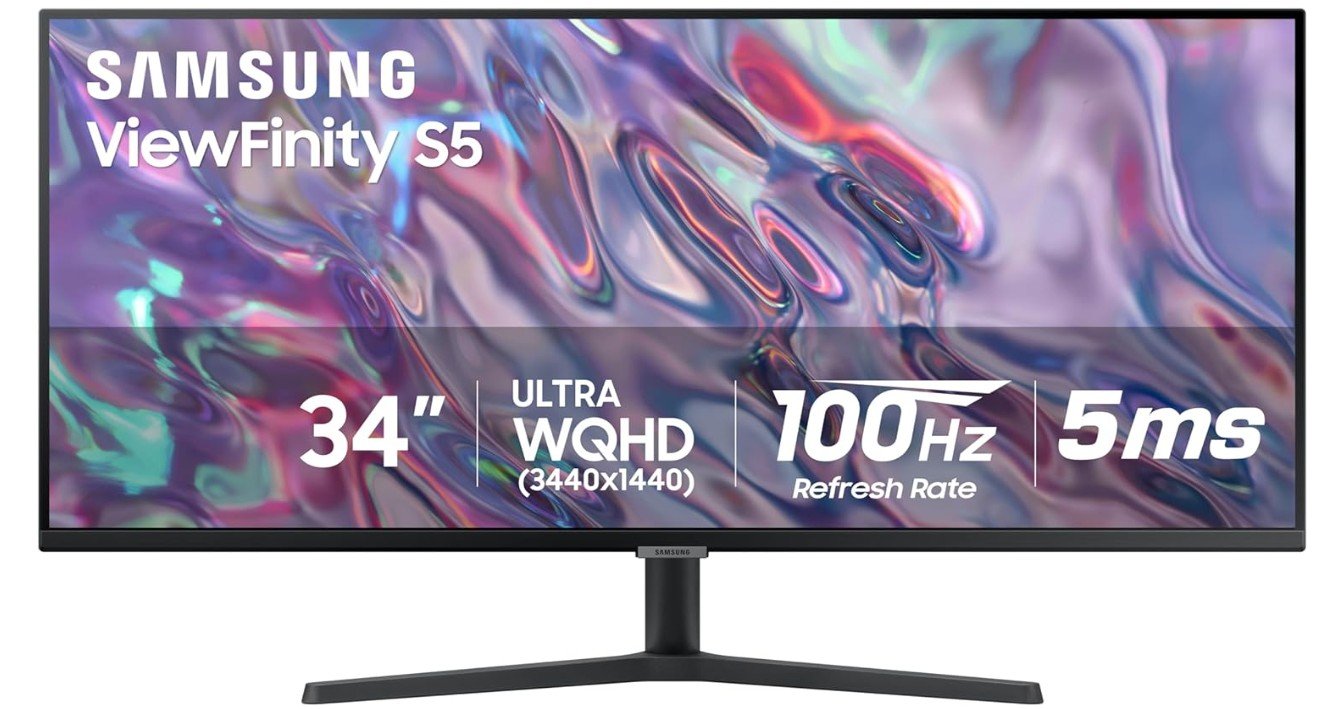
SAMSUNG 34″ ViewFinity S50GC Series Ultra-WQHD Monitor
SAMSUNG 34″ ViewFinity S50GC Series Ultra-WQHD Monitor
The Samsung ViewFinity S50GC is a great monitor for programming, especially if you like having a wide workspace. The ultrawide 34-inch screen gives you lots of room to see more code, multiple windows, and tools at the same time. With the wide 21:9 aspect ratio and high resolution (3440×1440), text looks clear and sharp, which makes reading and writing code easier and more comfortable, even during long work sessions.
For programmers, having extra horizontal space is very helpful. You can place your editor, terminal, and documentation side by side without overlapping windows. This makes multitasking smoother and reduces the need to constantly switch between apps. It also helps when comparing files or monitoring logs while coding. The larger workspace can improve productivity and make your setup feel more organized.
The monitor runs at 100Hz, which makes scrolling through code, web pages, and project files feel smooth and fluid. Although it is not designed specifically for gaming, the higher refresh rate adds to a comfortable everyday experience. The 5ms response time and FreeSync support help keep motion clean and reduce screen tearing during occasional leisure or debugging video content.
Eye comfort features like flicker-free technology and low blue light help reduce eye strain during long hours of coding. This is especially useful for programmers who work late into the night or spend most of their day at the computer. The borderless design also gives the monitor a sleek, modern look and makes it ideal for dual-monitor setups.
Additional features like PIP (Picture-in-Picture) and PBP (Picture-by-Picture) make multitasking even easier, allowing you to view inputs from two sources at once. Overall, the Samsung ViewFinity S50GC offers a large, comfortable, and productive workspace that enhances the programming experience without being overly complex.
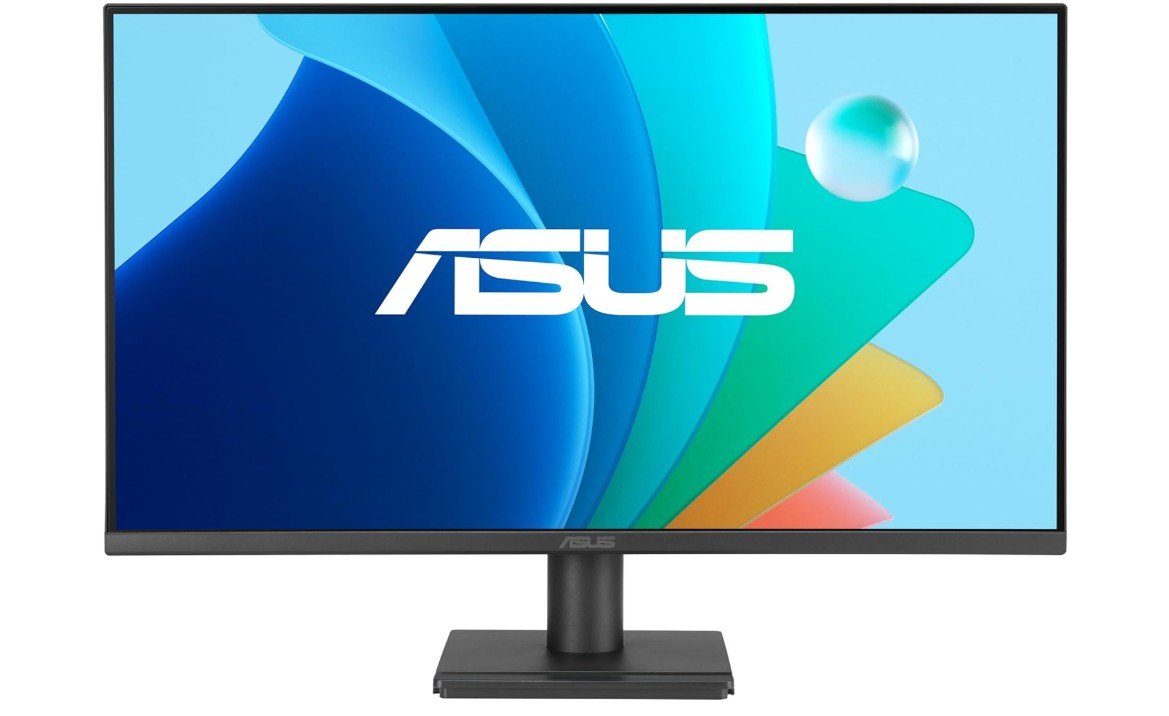
ASUS 27” Eye Care Monitor (VA279QG)
ASUS 27” Eye Care Monitor (VA279QG)
The ASUS VA279QG is a solid budget monitor for programming and everyday computer use. The 27-inch screen is a good size for reading and writing code, and the Full HD resolution shows text clearly so you can work for long periods without getting tired eyes. The IPS panel gives wide viewing angles, meaning the display looks consistent even if you move your head or chair while working.
One standout feature is the 120Hz refresh rate, which makes scrolling through long files, web pages, and code much smoother than a regular 60Hz screen. This doesn’t just make coding more pleasant; it can help reduce eye fatigue when you scroll through lots of text or logs. The Adaptive-Sync support also helps make movements look cleaner and more natural on screen.
For programmers, eye comfort is important, and this monitor includes low blue light and flicker-free technology to help reduce strain during long work sessions. If you code late at night or spend many hours at your desk, these features can make a noticeable difference. The frameless design also gives it a clean, modern look and makes it easier to set up dual monitors if you want more space for multitasking.
The monitor has multiple input options, including HDMI, DisplayPort, and VGA, so it can connect to a range of computers and laptops. Built-in speakers are a useful addition for videos, meetings, or notifications, though they are not very powerful for music or gaming. The screen is also wall-mountable, giving you flexibility in how you set up your workspace.
Overall, the ASUS VA279QG combines smooth performance, good color coverage, and eye-care features at a reasonable price. For programming, it offers clear text, smooth scrolling, and a comfortable viewing experience, making it a reliable choice for students, remote workers, and developers on a budget.
Budget Monitors for Programming: A Complete Buying Guide
Choosing the right monitor is one of the most important upgrades a programmer can make. You may have a powerful computer and a comfortable keyboard, but if your monitor is not easy on the eyes or does not provide enough workspace, your productivity will suffer. The good news is that you do not need an expensive, high-end display to code comfortably. Modern budget monitors offer excellent features that are more than enough for programming, studying, and everyday development work.
This buying guide explains everything you need to know before choosing a budget monitor for programming. It focuses on practical features that matter for long coding sessions and helps you avoid paying for things you do not need.
Why a Good Monitor Matters for Programming
Programming involves reading and writing text for long periods. Unlike gaming or video editing, where motion or color accuracy is the main concern, coding depends heavily on text clarity, screen space, and eye comfort. A poor monitor can cause eye strain, headaches, and neck pain, while a good one can make work feel easier and more enjoyable.
A well-chosen monitor allows you to:
- Read code clearly without zooming
- Open multiple windows side by side
- Work longer with less eye fatigue
- Maintain better posture at your desk
Even on a tight budget, these benefits are achievable if you know what to look for.
Screen Size: Finding the Right Balance
Screen size plays a major role in how comfortable programming feels.
24-inch Monitors
A 24-inch monitor is a popular budget choice. It fits well on most desks and works nicely with Full HD resolution. Text is generally sharp, and it is easy to focus on one main task at a time. For students or small desks, this size is often ideal.
27-inch Monitors
A 27-inch monitor gives you more room for multitasking. You can keep your code editor, browser, and terminal open at the same time. However, screen size should always be matched with the right resolution, otherwise text may look less sharp.
Ultrawide Monitors
Ultrawide monitors are wider than normal screens and allow you to replace dual-monitor setups with one display. They are excellent for productivity but usually cost more. Some budget ultrawide options exist, but they are best considered if you have enough desk space and prefer a single wide screen.
Resolution: Text Clarity Is Key
Resolution is one of the most important factors for programming.
Full HD (1920×1080)
Full HD is the most common resolution in budget monitors. It works well on 24-inch screens and is acceptable on 27-inch screens if you sit a bit farther back. For beginners and casual coders, Full HD is often enough.
QHD (2560×1440)
QHD is a big upgrade for programmers. Text looks noticeably sharper, and you get more screen space for multiple windows. On a 27-inch monitor, QHD provides an excellent balance between clarity and price. If your budget allows it, this is often the best choice for coding.
4K (3840×2160)
4K monitors are usually not budget-friendly. They also require more powerful hardware and careful scaling. For most programmers on a budget, 4K is unnecessary.
Panel Type: IPS, VA, or TN?
The panel type affects viewing angles, color consistency, and text quality.
IPS Panels
IPS panels are the best choice for programming. They provide clear text, stable colors, and wide viewing angles. Even if you move your head or adjust your sitting position, the image stays consistent. Most modern budget programming monitors use IPS panels.
VA Panels
VA panels offer higher contrast, which can make dark themes look deeper. However, some VA panels show slight blur when scrolling text. They can still be good for programming, but IPS is usually safer.
TN Panels
TN panels are the cheapest and fastest but have poor viewing angles and weaker text clarity. They are not recommended for long coding sessions.
Refresh Rate: Smoothness vs Necessity
Refresh rate controls how smoothly the screen updates.
- 60Hz is perfectly fine for programming.
- 75Hz–100Hz feels smoother when scrolling through code or web pages.
- 120Hz or higher is nice but not required unless you also game.
For budget monitors, do not overpay for very high refresh rates. Text clarity and ergonomics matter more.
Eye Care Features: Comfort for Long Sessions
Eye comfort is extremely important for programmers.
Flicker-Free Technology
Flicker-free backlights reduce invisible screen flicker that can cause eye fatigue. This feature is highly recommended.
Low Blue Light Mode
Low blue light modes reduce harsh light during night work. While blue light is not proven to permanently damage eyes, reducing it can make screens feel more comfortable during long sessions.
Anti-Glare Coating
An anti-glare screen reduces reflections from lights and windows, making it easier to focus.
Ergonomics: Protect Your Neck and Back
A good monitor should support healthy posture.
Adjustable Stand
Look for monitors that allow tilt adjustment at minimum. Height adjustment is even better, but often limited in budget models.
VESA Mount Support
VESA compatibility lets you use a monitor arm. This is a great way to improve ergonomics even with a cheap monitor stand.
Connectivity: What Ports Do You Need?
At minimum, your monitor should include:
- HDMI for modern PCs and laptops
- DisplayPort (recommended but not mandatory)
Other useful but optional ports:
- USB-C for single-cable laptop setups
- VGA for older systems
Built-in USB hubs and speakers are convenient but not essential for programming.
Color Accuracy: Important or Not?
For pure programming, color accuracy is not critical. However, if you also do:
- Web design
- UI/UX work
- Front-end development
Then look for monitors with close to 100% sRGB coverage. This ensures colors look consistent across devices.
Budget Tiers: What to Expect at Each Price Level
Entry-Level Budget
You can expect a 24-inch Full HD IPS monitor with basic eye-care features. Ideal for students and beginners.
Best Value Range
This range often includes 27-inch Full HD or QHD monitors with better panels and smoother refresh rates. This is the sweet spot for most programmers.
Upper Budget
Here you may find QHD monitors with better stands, USB-C support, or even entry-level ultrawide displays.
Dual Monitors vs Ultrawide
Two smaller monitors can give you more vertical space and flexibility. An ultrawide monitor gives you a clean, single-screen experience. Both setups work well for programming, so the choice depends on desk space and personal preference.
Common Mistakes to Avoid
- Buying a large screen with low resolution
- Ignoring ergonomics and stand quality
- Overpaying for gaming features
- Choosing TN panels for long coding hours
FAQs
A good programming monitor has clear text, comfortable viewing angles, and a size/resolution that lets you see code and multiple windows without eye strain.
24″ to 27″ is a great range — big enough for split-screen work but still affordable under a budget.
1080p (Full HD) is common and clear for coding. If your budget allows, 1440p (QHD) gives more screen space for multiple panels and detailed text.
Not really — 60 Hz is fine for coding. Higher refresh rates are mainly for gaming.
Some programmers like curved monitors because they can reduce eye movement across very wide screens, but on budget sizes like 24″–27″ it’s less noticeable.
Yes — budget programming monitors work well for web browsing, multimedia, office tasks, and even casual gaming.
Final Thoughts
The best budget monitor for programming is not the one with the highest specs, but the one that makes coding comfortable. Focus on text clarity, screen size, panel quality, and eye care features. A well-chosen budget monitor can greatly improve productivity and comfort without costing a lot of money.

Jawad is a passionate tech enthusiast and writer who loves exploring the latest trends in hardware, gadgets, and digital innovation. With a sharp eye for performance and value, he delivers in-depth recommendations and buying guides to help readers make smarter tech decisions.