Last Updated on February 9, 2026 by Jawad
Introduction
Monitors for work-from-home under $150 are a smart choice for people who want a comfortable and productive setup without spending too much money. When you work from home, you spend many hours looking at a screen for tasks like emails, video meetings, writing documents, browsing the web, and managing spreadsheets. A good monitor can make these daily tasks easier, clearer, and less tiring for your eyes.
In this price range, most monitors come with a Full HD resolution (1920×1080), which is more than enough for office work. Text looks sharp, images are clear, and you get enough screen space to open two windows side by side. Many budget monitors are available in 22-inch or 24-inch sizes, which are ideal for home offices because they fit well on small desks while still giving you plenty of viewing area.
Another important benefit of these affordable work-from-home monitors is eye comfort. Many models under $150 include features like low blue light modes and flicker-free technology. These features help reduce eye strain, headaches, and fatigue during long work sessions. This is especially useful if you work full-time from home or spend many hours on the computer every day.
Most monitors in this category also offer simple connectivity options such as HDMI and VGA ports, making them easy to connect to laptops, desktops, or even mini PCs. Some models include built-in speakers, which are helpful for video calls or casual media use, although external speakers or headphones usually sound better.
Overall, monitors for work-from-home under $150 provide excellent value. They focus on what matters most for productivity: clear display, comfortable viewing, and reliable performance. For students, remote workers, freelancers, or home office users on a budget, these monitors are a practical and cost-effective upgrade that can greatly improve daily work comfort and efficiency.
We also have a recommendation for the Best Monitors for Students, so make sure to check that out too!
Top Monitors for Work-from-Home Under $150
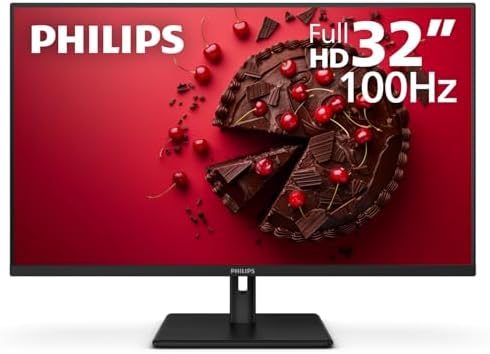


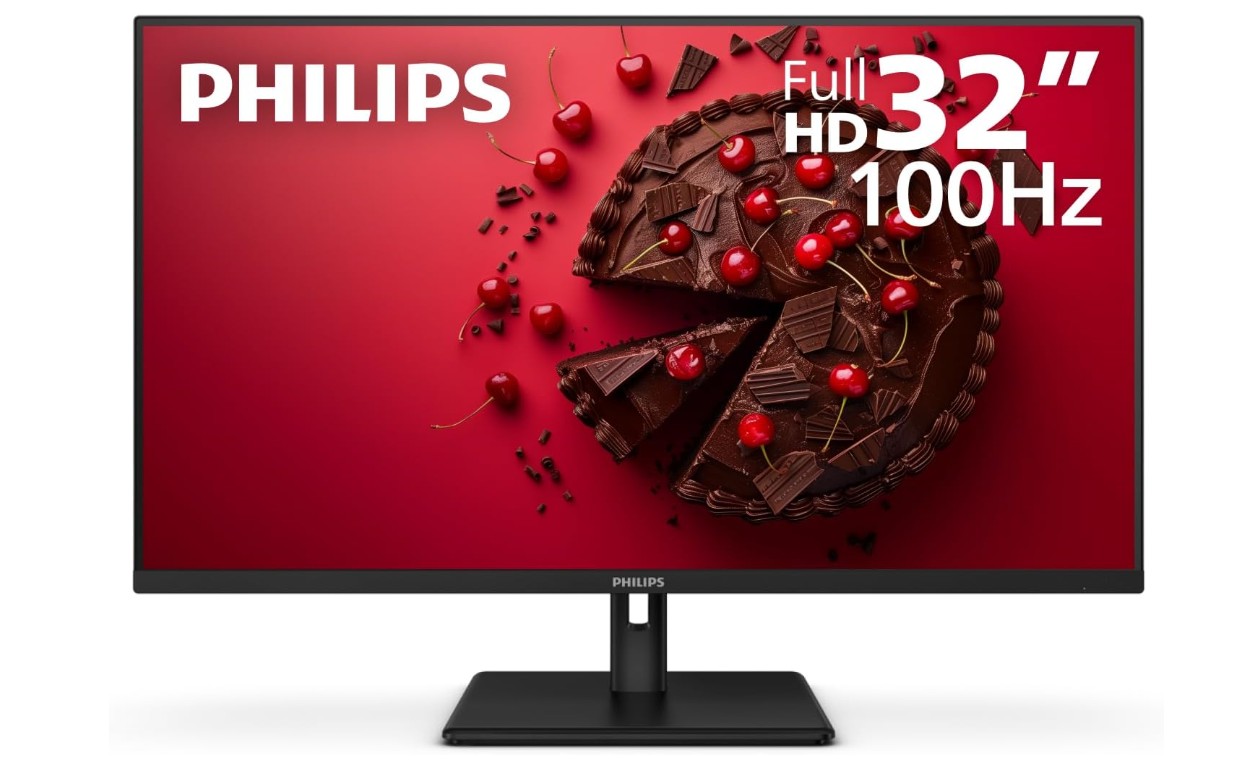
Philips 32E1N1100L 32″ Frameless Monitor
Philips 32E1N1100L 32″ Frameless Monitor
The Philips 32E1N1100L is a large and comfortable monitor that works very well for both work-from-home and everyday use. With its big 32-inch screen, it gives you a lot of space to work, making it easy to open multiple windows at the same time. This is very helpful for tasks like writing documents, working on spreadsheets, attending online meetings, or browsing with many tabs open. The Full HD resolution looks clear enough on a screen of this size, especially when you sit at a normal desk distance.
This monitor uses a VA panel, which is known for its strong contrast and deep black levels. Colors look rich and text is easy to read, making long working hours more comfortable. The 100Hz refresh rate is a nice bonus, even for office users. Scrolling through web pages feels smoother, and simple animations look better compared to standard 60Hz monitors. Adaptive-Sync also helps keep the screen smooth by reducing tearing and stuttering.
The frameless design gives the monitor a modern and clean look, which fits well in a home office setup. It also works nicely if you plan to use two monitors side by side. Eye comfort features like low blue light mode and flicker-free technology help reduce eye strain, which is important if you spend many hours in front of the screen each day.
Connectivity is simple and practical, with HDMI and VGA ports that work with most laptops and desktop PCs. The monitor also supports VESA mounting, so you can attach it to a wall or monitor arm for better ergonomics. Overall, the Philips 32E1N1100L offers a large display, smooth performance, and reliable quality, making it a great value choice for work-from-home users who want a big screen without spending too much money.
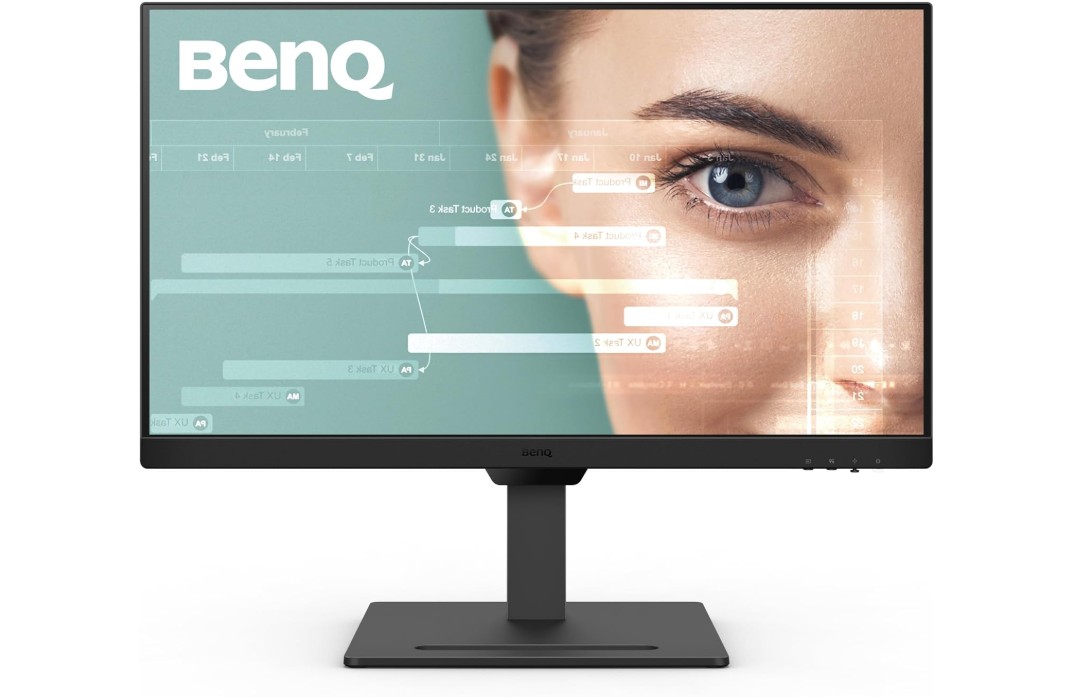
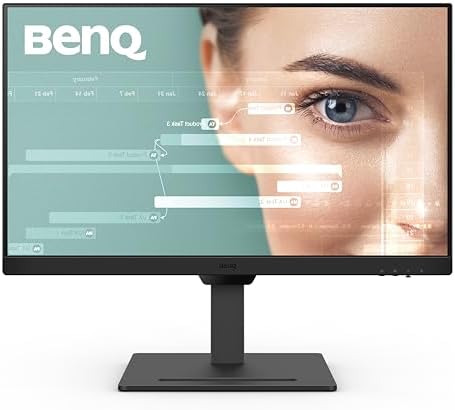
BenQ GW2790T 27″ Monitor
BenQ GW2790T 27″ Monitor
The BenQ GW2790T is a well-balanced monitor made for people who work long hours on a computer. Its 27-inch screen gives you plenty of space to work comfortably, making it easier to manage documents, spreadsheets, emails, and web browsing at the same time. The Full HD resolution looks sharp and clear on this screen size, which helps text stay readable without straining your eyes. It is a good fit for home offices, remote workers, and students.
This monitor uses an IPS panel, which means colors look accurate and consistent from different angles. You can sit straight or slightly off to the side and still see the screen clearly. The 100Hz refresh rate makes everyday tasks feel smoother, such as scrolling through pages or switching between apps. While it is not made for serious gaming, the higher refresh rate is a nice upgrade for general use and makes the display feel more responsive.
One of the best features of the BenQ GW2790T is its focus on comfort and ergonomics. The stand allows height and tilt adjustment, so you can set the screen at a proper eye level. It also supports vertical mode, which is very useful for reading long documents, coding, or viewing web pages. BenQ’s eye-care features, including low blue light and flicker-free technology, help reduce eye fatigue during long work sessions.
Connectivity is simple and modern, with both HDMI and DisplayPort available. This makes it easy to connect laptops, desktops, or docking stations. The slim bezel design gives the monitor a clean and professional look and also works well for multi-monitor setups. Overall, the BenQ GW2790T is a reliable and comfortable monitor that focuses on productivity, eye comfort, and flexible adjustments, making it a strong choice for work-from-home users who want quality without unnecessary extras.
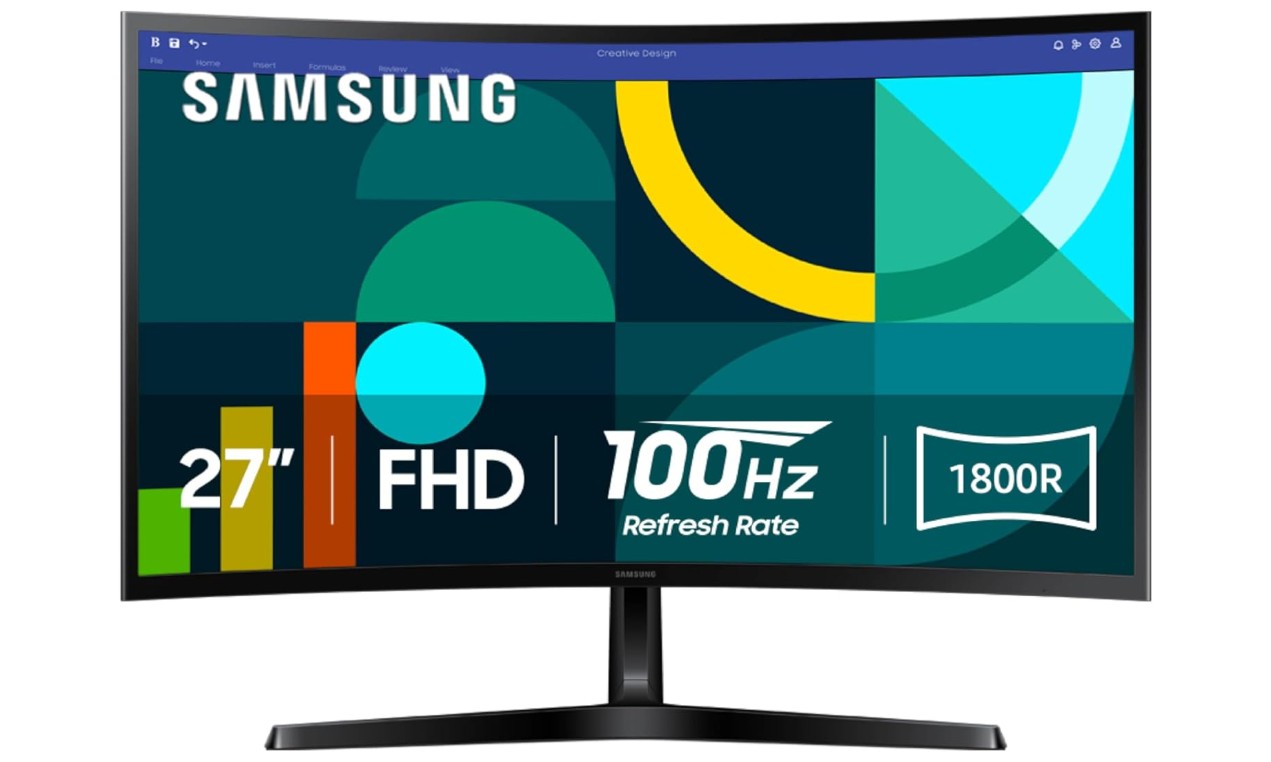
Samsung 27″ Essential S3 (S36GD) Series Curved Monitor
Samsung 27″ Essential S3 (S36GD) Series Curved Monitor
The Samsung 27-inch Essential S3 (S36GD) curved monitor is a solid option for users who want a comfortable and modern display for everyday work and light entertainment. Its 27-inch size gives you plenty of screen space for tasks like office work, online classes, browsing, and video calls. The Full HD resolution looks clear and sharp enough for daily use, and the curved 1800R design helps wrap the screen slightly around your view, making it easier to stay focused while working for long hours.
This monitor uses a VA panel, which is known for good contrast and deep blacks. This makes text easy to read and improves the overall viewing experience, especially in darker rooms. The 100Hz refresh rate adds smoothness when scrolling through documents or web pages, and switching between apps feels more responsive than standard 60Hz monitors. Samsung’s Game Mode is included as well, which adjusts settings for smoother visuals, making this monitor suitable for casual gaming in addition to work tasks.
Eye comfort is a strong point of this monitor. Samsung includes advanced eye comfort features such as Eye Saver Mode and flicker-free technology to help reduce eye strain. These features are very helpful for people who work from home or study for long hours in front of the screen. The curved screen design also helps reduce the need for constant head and eye movement across the display.
Connectivity is simple and practical, with HDMI and D-sub ports that work with most computers and older systems. The slim and clean design looks good in a home office setup and does not take up too much desk space. Overall, the Samsung Essential S3 curved monitor offers a smooth display, comfortable viewing, and reliable performance, making it a good value choice for work-from-home users who want a curved screen without spending too much.
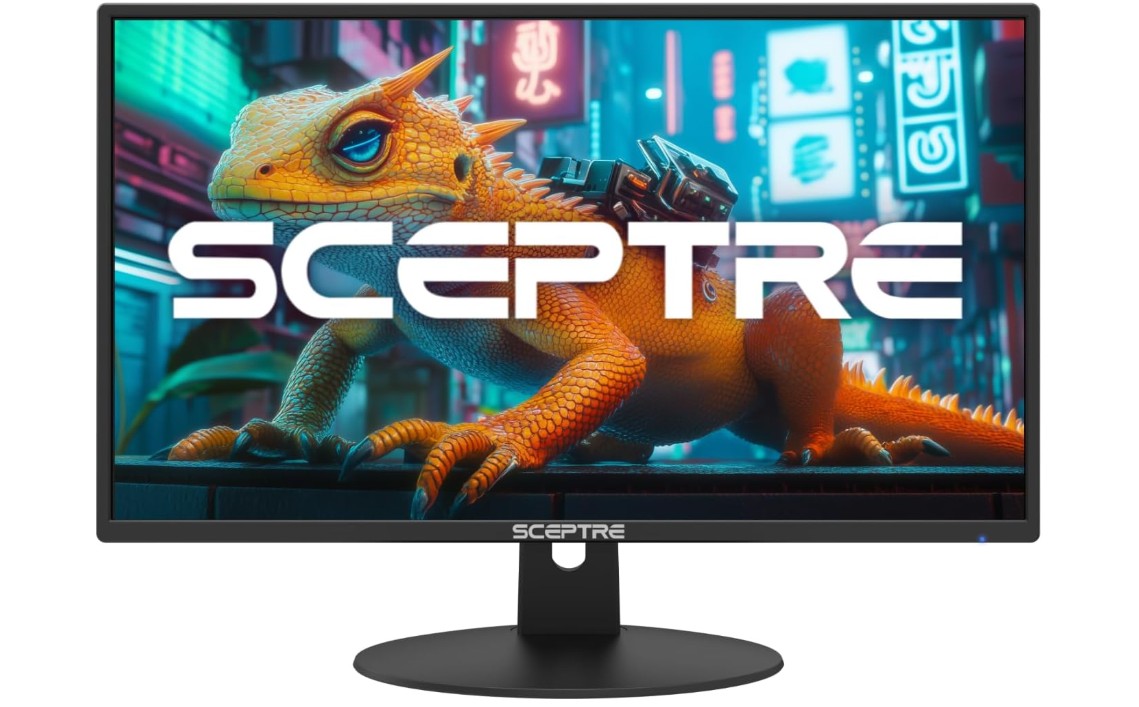
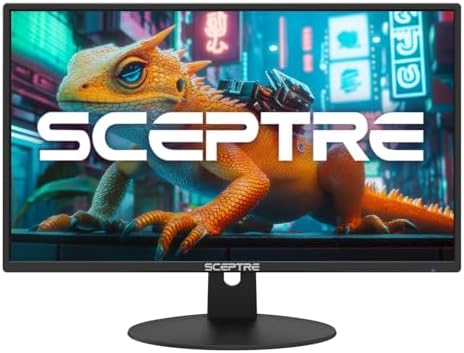
Sceptre 24-inch Prime Monitor
Sceptre 24-inch Prime Monitor
The Sceptre 24-inch Prime Monitor (E248W-19203R Series) is a practical and affordable display designed for everyday work, study, and general home use. With its 24-inch screen size, it offers a comfortable balance between desk space and viewing area, making it a good choice for home offices, students, and remote workers. The Full HD resolution looks sharp at this size, so text is easy to read and images appear clear during daily tasks like writing, browsing, and video calls.
This monitor uses an IPS panel, which helps deliver accurate colors and wide viewing angles. Colors look natural and consistent even when viewed from the side, which is useful when sharing the screen or adjusting your sitting position. The monitor also supports 100% sRGB color coverage, which is impressive for a budget display and makes it suitable for light photo editing, content creation, and watching videos. The 100Hz refresh rate adds smoothness to scrolling and window movement, making everyday use feel more responsive compared to standard 60Hz monitors.
Built-in speakers are included, which is convenient for basic audio needs such as video meetings, online classes, or casual media playback. While the speakers are not very powerful, they help reduce desk clutter by removing the need for external speakers. Connectivity is simple and flexible, with two HDMI ports and one VGA port, allowing you to connect multiple devices like a PC, laptop, or even a streaming device.
The slim bezel design gives the monitor a clean and modern look, and it fits well into most desk setups. It also supports VESA mounting, so you can attach it to a wall or monitor arm for better ergonomics. Overall, the Sceptre 24-inch Prime Monitor offers smooth performance, good color quality, and useful features at an affordable price, making it a solid choice for everyday productivity and home use.
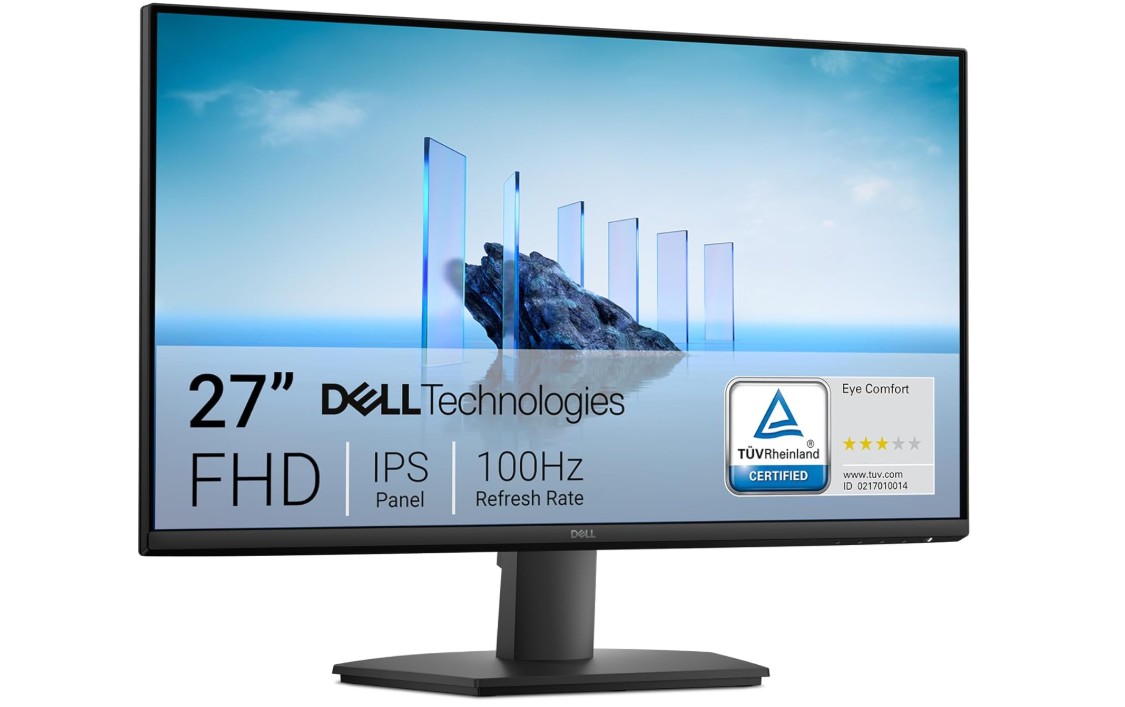
Dell 27 Monitor – SE2725HM
Dell 27 Monitor – SE2725HM
The Dell SE2725HM is a simple and reliable 27-inch monitor designed for everyday work and home use. Its large screen size gives you plenty of space to work comfortably, which is helpful for tasks like writing documents, handling spreadsheets, browsing the web, and attending online meetings. The Full HD resolution looks clear and sharp enough for office work, and text remains easy to read when sitting at a normal desk distance.
This monitor uses an IPS panel, which means colors stay consistent and accurate even when you view the screen from different angles. This makes it easier to share your screen with others or change your sitting position without losing image quality. The 100Hz refresh rate is a nice improvement over standard 60Hz displays, making scrolling and general movement feel smoother and more responsive during daily use.
Eye comfort is one of the strong points of the Dell SE2725HM. It features ComfortView Plus, which reduces harmful blue light without changing colors too much. The monitor is also TÜV Rheinland 3-Star certified, showing that it meets good standards for eye care. The anti-glare screen helps reduce reflections, making it more comfortable to use in bright rooms or near windows. These features are especially useful for people who spend long hours working in front of a screen.
Connectivity is straightforward, with one HDMI port and one VGA port, making it compatible with both modern and older systems. The slim bezel design gives the monitor a clean and professional look that fits well in a home or office setup. While it does not include advanced features like built-in speakers or USB ports, it focuses on delivering a stable and comfortable viewing experience. Overall, the Dell SE2725HM is a solid choice for work-from-home users who want a large, smooth, and eye-friendly monitor from a trusted brand.
Buying Guide: Best Monitors for Work-from-Home Under $150
Working from home has become normal for many people, including students, freelancers, office workers, and small business owners. One of the most important parts of a home office is a good monitor. A laptop screen is often too small for long hours of work, while a proper monitor gives you more space, better comfort, and higher productivity. The good news is that you do not need to spend a lot of money. There are many good monitors available under $150 that work perfectly for work-from-home needs.
This buying guide will help you understand what to look for when choosing a work-from-home monitor under $150 and how to pick the best one for your daily tasks.
Why a Good Monitor Matters for Work-from-Home
When you work from home, you may spend 6 to 10 hours a day looking at your screen. A good monitor helps reduce eye strain, improves posture, and makes multitasking easier. A larger screen allows you to open two or more windows side by side, which saves time and reduces stress. Even a budget monitor can make a big difference compared to using a small laptop display.
Ideal Screen Size for Home Office Use
For monitors under $150, the most common sizes are 22-inch, 24-inch, and 27-inch.
A 24-inch monitor is the sweet spot for most users. It offers enough space for documents, emails, and web browsing without taking up too much desk space. Text looks sharp, and it works well with Full HD resolution.
A 27-inch monitor gives you more screen space and feels more immersive. It is great for multitasking, but at this price range, most 27-inch monitors use Full HD resolution, which may look slightly less sharp than on smaller screens. Still, it is perfectly fine for office work.
A 22-inch monitor is a good option for small desks or tight spaces. It is affordable and practical, especially for students or basic office use.
Resolution: What Is Enough for Office Work?
Most monitors under $150 come with Full HD resolution (1920 × 1080). This resolution is more than enough for work-from-home tasks such as writing, spreadsheets, video calls, browsing, and emails.
Higher resolutions like 1440p or 4K are usually not available in this budget range, but for normal office work, Full HD works very well and keeps text clear and readable.
Panel Types: IPS vs VA vs TN
Understanding panel types helps you choose the right display quality.
IPS panels are the best choice for work-from-home users. They offer better color accuracy and wide viewing angles. This means the screen looks good even if you move your head or sit slightly to the side. IPS panels are great for reading text, video calls, and light content creation.
VA panels have higher contrast and deeper blacks. They are good for reading and watching videos, especially in darker rooms. Viewing angles are not as wide as IPS, but they are still good for office use.
TN panels are usually cheaper but have poor viewing angles and weaker colors. They are less common now and not recommended for long work hours.
For most people, IPS is the safest and most comfortable choice.
Refresh Rate: Is 100Hz Worth It?
Standard office monitors usually have a 60Hz refresh rate, but many new budget monitors now offer 75Hz or 100Hz.
A 100Hz monitor makes scrolling smoother and reduces motion blur when moving windows or browsing the web. You do not need this for office work, but once you use it, it feels more comfortable and responsive. If you can get 100Hz under $150, it is a nice bonus.
Eye-Care Features: Very Important for Long Hours
Eye comfort is one of the most important things to consider.
Look for monitors that include:
- Low Blue Light mode to reduce eye strain
- Flicker-Free technology to prevent headaches
- Anti-glare coating to reduce reflections
Brands like Dell, BenQ, Samsung, and Philips focus heavily on eye-care features. If you work long hours, these features are more important than gaming features.
Ergonomics: Stand Adjustments and VESA Support
Most budget monitors come with a basic tilt-only stand. This is okay, but height-adjustable stands are better for posture.
If height adjustment is not included, check for VESA mount support. VESA mounting allows you to use a monitor arm or wall mount, which helps you set the screen at eye level and keep your desk clean.
Good posture reduces neck and back pain, especially for full-time remote workers.
Connectivity: Ports You Actually Need
For work-from-home use, you do not need many ports, but the basics are important.
Most monitors under $150 include:
- HDMI (essential for modern laptops and PCs)
- VGA (D-sub) for older systems
Some monitors also include DisplayPort, which is a bonus but not required. USB-C and USB hubs are rare in this price range.
If you plan to connect two devices, such as a laptop and a desktop, having two HDMI ports can be very useful.
Built-in Speakers: Helpful but Not Essential
Some budget monitors include built-in speakers. These are convenient for video calls, online classes, and basic audio, but the sound quality is usually average.
If you already use headphones or external speakers, built-in speakers are not necessary. Think of them as a bonus, not a must-have feature.
Curved vs Flat Monitors for Work
Curved monitors are becoming popular even in the budget category.
A curved monitor can feel more comfortable on larger screens like 27 inches because it slightly wraps around your field of view. This can reduce eye movement and improve focus.
A flat monitor is simpler and works well for all types of tasks. For most office users, both curved and flat displays work fine. It comes down to personal preference.
Brand Reliability and Warranty
When buying a budget monitor, brand reputation matters. Trusted brands usually offer better quality control and warranty support.
Good brands for budget work-from-home monitors include:
- Dell
- BenQ
- Samsung
- Philips
- LG
- Sceptre
Some brands even offer extended warranties or advance replacement, which adds extra peace of mind.
Who Should Buy a Monitor Under $150?
A monitor under $150 is perfect for:
- Work-from-home employees
- Students and online learners
- Freelancers and writers
- Office and administrative work
- Home business users
If you are doing professional photo editing, video editing, or advanced design work, you may need a higher-end monitor. But for normal productivity, this budget range is more than enough.
FAQs
Yes — you can find reliable monitors with solid display quality, comfortable viewing, and essential ports for home office tasks at this budget.
Most monitors in this range are between 21.5″ and 27″, offering a good balance of workspace and desk footprint.
1080p (Full HD) is the most common and ideal at this price, providing clear text and comfortable viewing for work and video calls.
Not usually — 60 Hz is fine for typical work tasks like browsing, documents, spreadsheets, and video conferencing.
Final Thoughts
Monitors for work-from-home under $150 offer excellent value. You can get a large screen, clear Full HD resolution, comfortable eye-care features, and smooth performance without spending much money. The key is to focus on what matters most: screen size, panel type, eye comfort, and basic connectivity.
A good monitor can improve your productivity, reduce eye strain, and make working from home more comfortable every day. With the right choice, even a budget monitor can feel like a big upgrade to your home office setup.

Jawad is a passionate tech enthusiast and writer who loves exploring the latest trends in hardware, gadgets, and digital innovation. With a sharp eye for performance and value, he delivers in-depth recommendations and buying guides to help readers make smarter tech decisions.