Last Updated on February 14, 2026 by Jawad
Introduction
A mouse for graphic design is more than just a basic computer accessory. It is a tool that helps designers work faster, more accurately, and with less strain on the hand. Graphic designers spend long hours using design software, moving the cursor carefully to draw, edit, resize, and fine-tune details. Because of this, using the right mouse can make a big difference in comfort and overall work quality.
Graphic design work often requires precise control. Tasks like selecting small points, adjusting curves, or working with layers need smooth and accurate movement. A good mouse for graphic design offers high sensitivity and smooth tracking, which allows designers to make clean and exact movements. This level of control helps reduce mistakes and saves time during editing and designing.
Comfort is another very important factor. Designers may work for many hours without breaks, so a mouse should feel natural in the hand. An ergonomic shape helps reduce hand and wrist pain, especially during long design sessions. A comfortable mouse can also help prevent fatigue and long-term issues such as wrist strain or discomfort.
Many graphic design mice also come with extra buttons. These buttons can be customized for common actions like zooming, switching tools, or undoing steps. This helps designers work more efficiently without constantly reaching for the keyboard. Over time, these small shortcuts can speed up the workflow and make the design process smoother.
In simple terms, a mouse for graphic design is designed to support accuracy, comfort, and productivity. Whether you are a beginner learning design basics or a professional working on complex projects, choosing the right mouse can improve your daily work experience and help you focus more on creativity instead of hand discomfort.
We also have a recommendation for the Best MMO Gaming Mice, so make sure to check that out too!
Top Mouse for Graphic Design


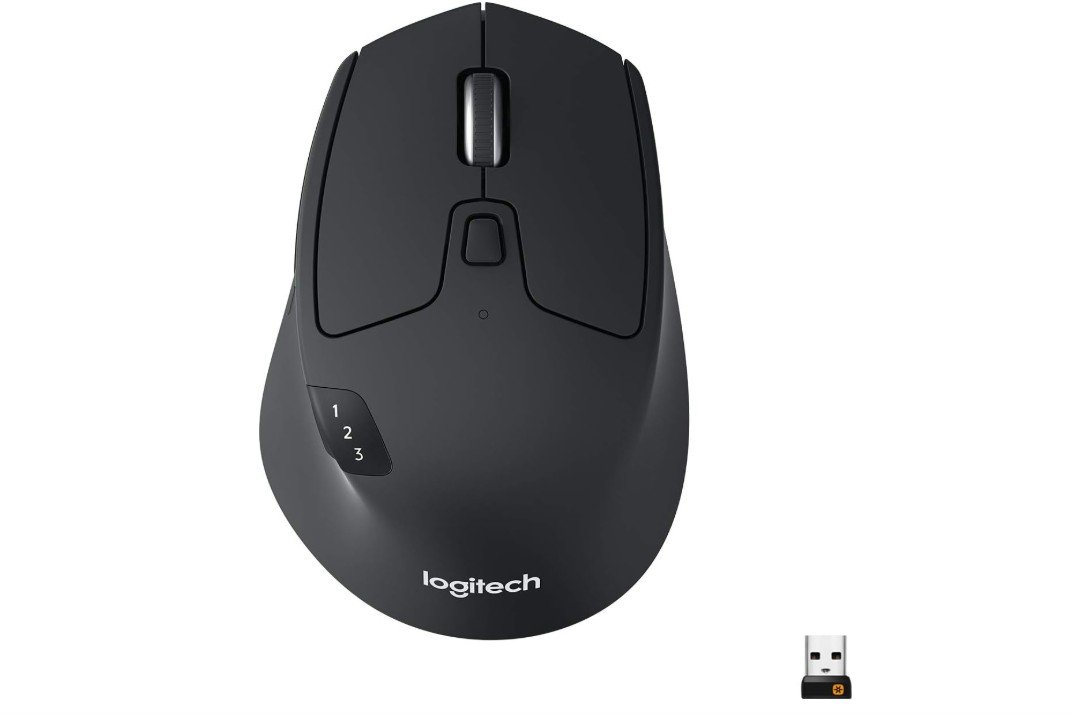
Logitech M720 Triathlon Wireless Mouse
Logitech M720 Triathlon Wireless Mouse
The Logitech M720 Triathlon Wireless Mouse is a reliable and comfortable choice for graphic design work. From the first use, it feels solid and well-built. The shape fits comfortably in most hands, which is important when you spend many hours working on detailed designs. The rubber side grip helps keep your hand steady, and the buttons are easy to reach without stretching or repositioning your hand often.
For graphic design, precision and control matter a lot. The M720 has a 1000 DPI sensor that tracks smoothly on most surfaces. While it is not the highest DPI on the market, it is enough for most design tasks like drawing, selecting small details, dragging objects, and working in software like Adobe Illustrator or Photoshop. Movements feel consistent, and the pointer jumps less, which helps when you need accuracy.
One of the best features of this mouse is its ability to connect to multiple devices at the same time. You can pair it with a laptop, desktop, and tablet and switch between them quickly with a button. This is useful for designers who use more than one device during their workflow. The Bluetooth and USB Unifying Receiver options give you flexibility if your device lacks Bluetooth or if you prefer a wireless dongle.
The buttons on the M720 can be programmed for different functions. This means you can set shortcuts for actions you use often, like undo, zoom, or switch tools. Custom buttons help save time and make working smoother. The scroll wheel is also fast and reliable, especially when scrolling through long design files or timelines.
Battery life is another strong point. With up to 2 years of power from a single AA battery, you don’t need to worry about frequent replacements. Overall, the Logitech M720 Triathlon is a solid, comfortable, and efficient mouse that works well for most graphic design needs.

TECKNET Ergonomic Mouse
TECKNET Ergonomic Mouse
The TECKNET Ergonomic Vertical Mouse is a comfortable and practical choice for graphic designers who want a different style of mouse that reduces wrist strain. Right from the start, the vertical design feels very natural in the hand. It keeps your wrist in a more relaxed position, which can be helpful during long design sessions where traditional flat mice sometimes cause fatigue or discomfort. Many designers who work for hours in programs like Photoshop or Illustrator may find this shape easier on their hands.
In terms of performance, this mouse tracks smoothly thanks to its 4800 DPI optical sensor. You can adjust the DPI through six different levels, so you can choose slower, more detailed movement for fine design work or faster movement when you need to jump across the screen quickly. This flexibility makes it easier to control your cursor whether you are doing precise editing or moving between tools and palettes.
The six buttons on the mouse also add to its usefulness. You can assign functions to these buttons for quick access to actions you use often, like zooming, undoing, or switching tools. This can save time and make your design workflow faster and more efficient. The quiet clicks are a nice bonus, especially if you share a workspace or prefer a mouse that makes less noise while clicking.
Connectivity is simple and reliable, with both Bluetooth and a 2.4 GHz USB-A receiver option. This means you can use it with many types of computers, including laptops and desktops, without worrying about compatibility. Battery life is very good too, lasting up to 12 months on a single AA battery, so you don’t have to change it often.
Overall, the TECKNET Ergonomic Vertical Mouse is a comfortable, adjustable, and practical tool for graphic design. It may feel unusual at first if you are used to traditional mice, but many designers find that the comfort and control it offers help them work better for longer.
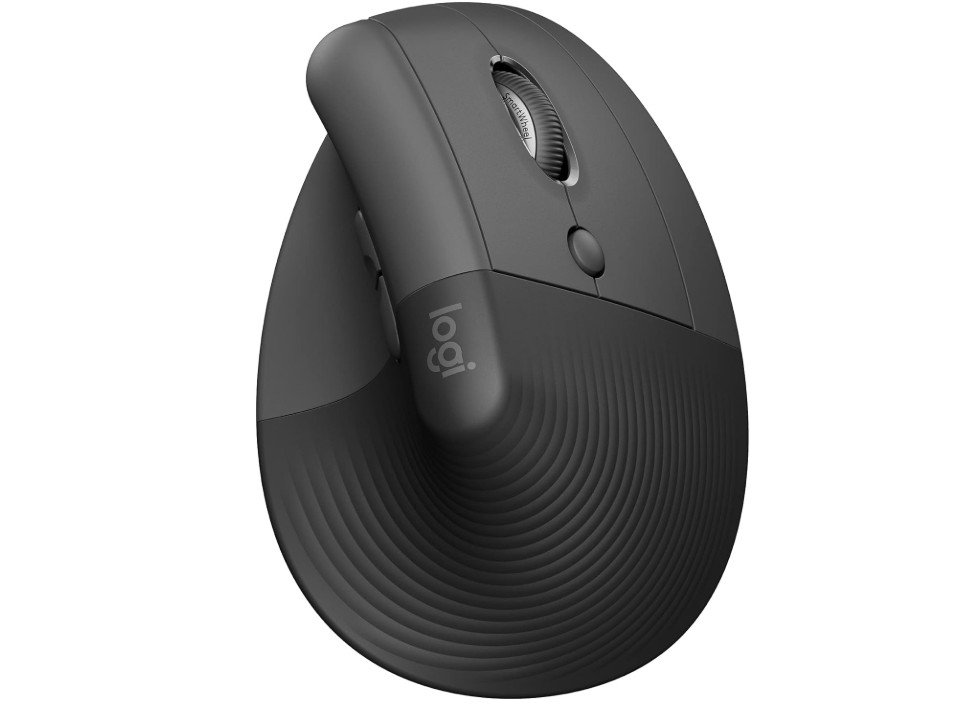
Logitech Lift Vertical Ergonomic Mouse
Logitech Lift Vertical Ergonomic Mouse
The Logitech Lift Vertical Ergonomic Mouse is a comfortable and smart choice for graphic designers who want a mouse that is easy on the wrist and hand. Its vertical shape keeps your hand in a natural position, which helps reduce strain and discomfort during long design sessions. If you spend many hours in design software like Photoshop, Illustrator, or other creative tools, this mouse can help your hand feel less tired at the end of the day.
In real use, the Lift feels smooth and easy to control. The sensor tracks well, making it easier to move the cursor precisely when you are working on detailed design tasks, like adjusting lines, selecting small objects, or editing shapes. It may not have super high DPI compared to gaming mice, but for most graphic design work it is comfortable and accurate enough. The four buttons are simple but useful, and you can customize them for actions you use often, like zooming in and out or switching tools. This can make your workflow faster because you don’t always have to use the keyboard or menus.
The mouse connects easily using Bluetooth or the small USB receiver, which makes it convenient whether you are using a laptop, desktop, or even a tablet with compatible support. The quiet clicks are a nice plus, especially if you work in a shared space or prefer a quieter workspace. You don’t hear loud clicking sounds, which many people find more pleasant during long work hours.
Battery life is excellent, lasting up to about two years on a single battery, so you won’t be changing batteries often. The build quality feels solid and reliable, and the size is comfortable for medium to large hands. Overall, the Logitech Lift Vertical Ergonomic Mouse gives graphic designers a good balance of comfort, ease of use, and reliable performance. It may take a short time to get used to the vertical design, but many users find it worth the adjustment for the comfort it offers.
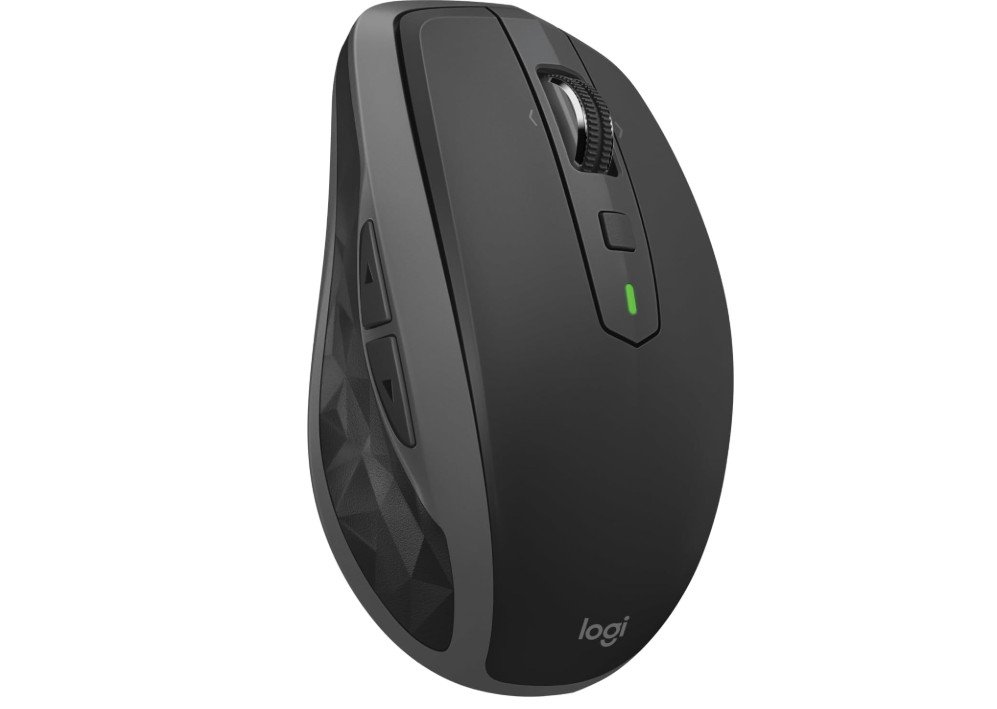
Logitech MX Anywhere 2S Bluetooth Edition Compact Wireless Mouse
Logitech MX Anywhere 2S Bluetooth Edition Compact Wireless Mouse
The Logitech MX Anywhere 2S Bluetooth Edition is a compact and powerful mouse that many graphic designers will enjoy using for daily work. Its small size makes it easy to carry with a laptop, so you can design comfortably whether you are at home, in a studio, or on the go. Even though it is small, the mouse feels solid and well-built, and its shape fits nicely in most hands without causing discomfort during long design sessions.
For graphic design tasks, smooth and accurate tracking is very important, and this mouse performs well on that front. The sensor works on almost any surface, including glass and textured desks, which gives you flexibility to work in different environments without always needing a mouse pad. This reliable tracking helps you move the cursor with precision when you are working in software like Photoshop or Illustrator, selecting objects, drawing shapes, or editing fine details. The hyper-fast scroll wheel is especially useful when you are navigating large design files or long timelines. It makes scrolling through artboards and layers much quicker and smoother than with a standard wheel.
A great feature of this mouse is its ability to connect to up to three devices and switch between them easily. If you use both a laptop and a desktop or tablet, you can quickly move between devices without reconnecting. This saves time and makes your workflow more efficient. Because it connects via Bluetooth, you don’t need a USB receiver, which is helpful if your device has limited ports.
The rechargeable battery lasts a long time and can be quickly topped up with a USB cable when needed. The customizable buttons let you assign shortcuts for actions you use often, like zoom, undo, or switching tools, which can save time and improve your productivity.
Overall, the Logitech MX Anywhere 2S Bluetooth Edition is a reliable, versatile, and comfortable mouse that works well for graphic design, especially for designers who need mobility and precise control.
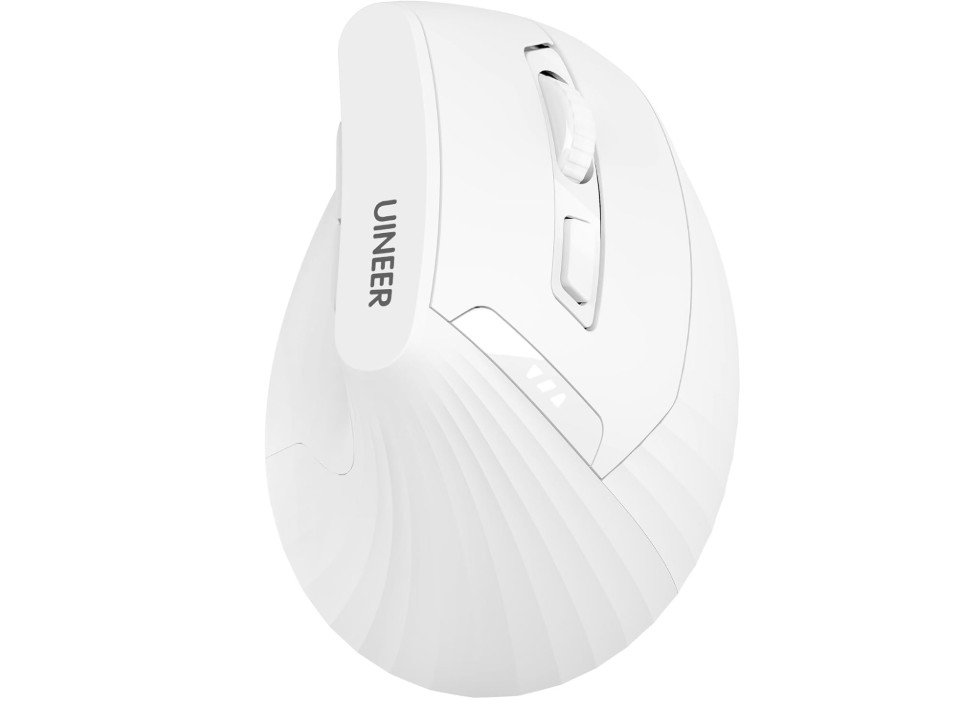
Uineer Ergonomic Mouse
Uineer Ergonomic Mouse
The Uineer Ergonomic Vertical Mouse is a comfortable and useful option for graphic designers, especially for those who want a mouse that helps reduce wrist strain. The vertical shape feels natural in the hand and keeps your wrist in a more relaxed position. This can be helpful when you spend many hours working in design programs like Photoshop, Illustrator, or other creative software. Long design sessions often cause wrist fatigue, and this mouse’s design aims to make your hand feel less tired at the end of the day.
In real use, the tracking is smooth and reliable, making it easier to move the cursor with control. While it may not offer super high DPI levels like some gaming mice, the accuracy is enough for most graphic design tasks such as selecting objects, working with layers, or editing details. The ability to connect through Bluetooth or the 2.4 GHz USB receiver gives you flexibility. Whether you want to use it with a laptop, desktop, or tablet, the connection stays stable and responsive without lag.
One helpful feature is the rechargeable battery with a battery level indicator. You can see how much power is left, so you don’t suddenly run out during work. Charging through USB is easy and convenient. The buttons are straightforward to use, and some software allows you to customize them for shortcuts like undo, zoom, or tool switching. These small shortcuts can help speed up your design workflow.
Comfort is the real advantage of this mouse. The ergonomic shape helps lessen the pressure on your wrist, which can be especially good if you often get tired or sore from using a regular mouse. The white color also looks clean and modern on a design desk.
Overall, the Uineer Ergonomic Vertical Mouse offers a good balance of comfort, reliable tracking, and flexibility. It may take a short time to get used to the vertical style, but many designers will appreciate the reduced wrist strain and smooth performance for everyday graphic design work.
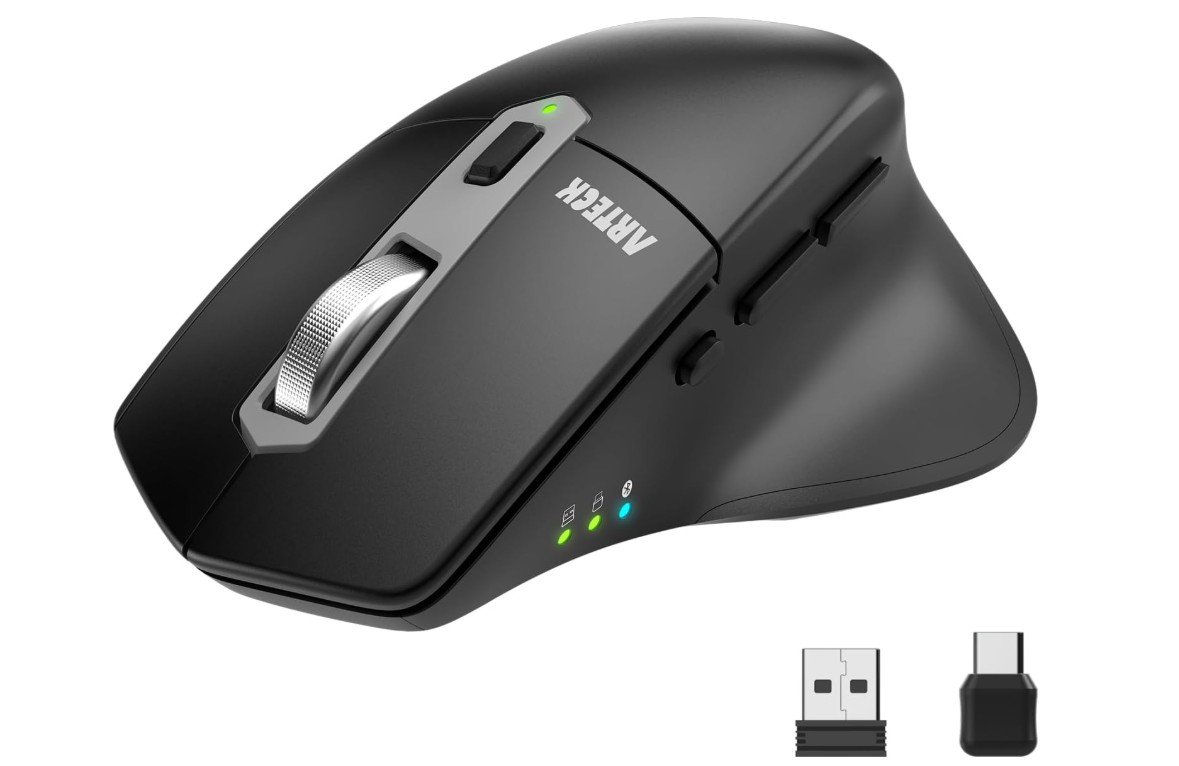
Arteck Multi-Device Wireless Bluetooth Mouse
Arteck Multi-Device Wireless Bluetooth Mouse
The Arteck Multi-Device Wireless Bluetooth Mouse is a solid choice for graphic designers who want a simple, reliable, and versatile mouse. Right away, you notice how comfortable it feels in the hand. The ergonomic shape supports your wrist and palm, which can be helpful when working for long hours in design programs like Photoshop, Illustrator, or other creative software. It does not cause much strain even after long sessions, which is a big plus for designers who work on detailed projects.
One of the best features of this mouse is its connectivity. You can connect it using Bluetooth or through a USB-A or USB-C receiver. This makes it easy to use with a wide range of devices including laptops, desktops, tablets, and Macs. For designers who switch between devices often, this flexibility can save time and hassle. The mouse switches quickly between connections and stays responsive without lag, which keeps your workflow smooth.
For graphic design work, precise tracking is important, and the Arteck mouse performs well in this area. The sensor tracks smoothly and responds accurately as you move the cursor. It lets you select small details, move objects, and make fine adjustments without sudden jumps or jumps in the pointer. The silent clicking feature is also a nice bonus, especially if you work in a quiet studio or shared space. The buttons don’t make loud sounds, which many people find more pleasant for long use.
The rechargeable battery lasts a long time, so you don’t need to charge it often. Charging is easy using a USB cable, and it holds power well for everyday use. While it does not have super advanced features like high-end design mice, it covers all the basic needs of a graphic designer. The build quality feels solid, and the overall performance is reliable.
In simple terms, the Arteck Multi-Device Wireless Bluetooth Mouse is a dependable and comfortable choice for graphic design. It gives you good control, easy connection options, and quiet clicks, making it suitable for daily design work.
Mouse for Graphic Design: Buying Guide
Choosing the best mouse for graphic design is more important than many people realize. Graphic designers spend long hours moving the cursor, selecting small details, zooming in and out, and making tiny adjustments that need accuracy. A good mouse helps you work faster, feel more comfortable, and stay focused on creativity instead of hand pain. This buying guide explains everything you need to know before choosing the right mouse for graphic design.
Why a Good Mouse Matters for Graphic Design
Graphic design work depends heavily on precision and comfort. Tasks like photo editing, vector drawing, layout design, and UI work all require smooth and accurate cursor movement. A low-quality mouse can cause missed clicks, shaky movements, and wrist fatigue. A well-designed mouse improves accuracy, reduces strain, and makes daily work more enjoyable and productive.
Types of Mice for Graphic Designers
Productivity Mice
Productivity mice are designed for long hours of work. They usually have ergonomic shapes, multiple programmable buttons, and advanced scroll wheels. These are ideal for designers who work mainly at a desk and want comfort plus efficiency.
Compact and Portable Mice
Portable mice are smaller and lighter, making them great for designers who travel or work from different locations. These mice often work on many surfaces and are easy to carry with a laptop.
Ergonomic and Vertical Mice
Ergonomic and vertical mice are designed to reduce wrist strain. They keep the hand in a more natural position and are helpful for designers who suffer from wrist pain or want to prevent it. The Logitech Lift is a good example. These mice may feel strange at first but can be very comfortable over time.
Important Features to Look For
Sensor and DPI
For graphic design, smooth and accurate tracking is more important than extremely high DPI. A mouse should move consistently and respond well to small movements. Adjustable DPI is helpful so you can slow down the cursor for detailed work and speed it up when needed.
Ergonomics and Comfort
Comfort is key for long design sessions. Look for a mouse that fits your hand size and grip style. Larger mice support the palm better, while smaller mice are easier to carry. Ergonomic shapes reduce hand and wrist fatigue over time.
Buttons and Customization
Extra buttons can improve workflow by allowing shortcuts for actions like undo, zoom, pan, or switching tools. Good software support lets you customize buttons for different design apps, which can save a lot of time.
Scroll Wheel Quality
A good scroll wheel helps when working with large artboards, long documents, or timelines. Some mice offer fast free-spin scrolling as well as precise step-by-step scrolling, giving you more control.
Connectivity and Battery
Wireless mice usually connect via Bluetooth or a USB receiver. Some support multiple devices, which is useful if you switch between a laptop, desktop, or tablet. Rechargeable batteries are convenient, while long-lasting AA batteries are low-maintenance.
Noise Level
Quiet clicks are better for shared offices or home studios. Silent buttons reduce distraction and make long sessions more pleasant.
Matching the Mouse to Your Design Work
Photo Editing and Retouching
Photo editors benefit from smooth tracking and fast scrolling. A productivity mouse with a strong sensor and customizable buttons works best here.
Vector and Illustration Work
Precision is very important for vector design. A mouse with stable tracking and adjustable DPI helps with fine lines and anchor points.
UI and Web Design
UI designers often switch between tools and zoom levels. Extra buttons and fast scrolling can greatly improve efficiency.
Designers with Wrist Pain
If wrist discomfort is an issue, an ergonomic or vertical mouse can make a big difference. These mice reduce wrist twisting and pressure during long sessions.
Popular Mouse Options Compared
The Logitech MX Master series offers excellent comfort, many buttons, and advanced scrolling, but it is larger and more expensive.
The Logitech MX Anywhere series is portable, works on almost any surface, and is great for travel, but may feel small for large hands.
Vertical mice like the Logitech Lift reduce wrist strain but require time to adjust.
The Apple Magic Mouse offers touch gestures and a sleek design but is less comfortable for long graphic design sessions.
Quick Buying Checklist
- Choose a mouse that fits your hand size
- Make sure the sensor is smooth and accurate
- Check for customizable buttons and good software
- Decide between portability and desk comfort
- Consider battery type and charging method
- Think about wrist comfort for long-term use
FAQs
For graphic design, the most important features are a smooth and accurate sensor, comfortable shape, programmable buttons, and a * responsive scroll wheel*. These help you make precise selections, pan and zoom easily, and work longer without fatigue.
Not necessarily. Very high DPI (dots-per-inch) is more useful in gaming. For design work, smooth and consistent tracking matters more than a super-high DPI number. Adjustable DPI is helpful so you can choose a slower speed for detailed work and faster for navigation.
Yes — wireless mice are great if they have a reliable connection (Bluetooth or USB receiver). Many professional designers prefer wireless models because they reduce cable clutter and allow more freedom of movement.
If you work long hours and feel hand or wrist fatigue, an ergonomic or vertical mouse can help reduce strain. Regular mice can still be fine if they feel comfortable in your hand. Choose what feels best after trying in your hand if possible.
Yes. Extra programmable buttons let you assign shortcuts (like undo, zoom, pan, or brush size) directly to the mouse. This saves time and reduces reliance on keyboard shortcuts.
Final Thoughts
The best mouse for graphic design depends on how you work, where you work, and how long you work each day. Comfort, accuracy, and customization matter more than flashy features. A good mouse can improve your workflow, protect your wrist, and help you focus on creativity. Whether you choose a productivity mouse, a portable option, or an ergonomic design, investing in the right mouse is a smart decision for any graphic designer.

Jawad is a passionate tech enthusiast and writer who loves exploring the latest trends in hardware, gadgets, and digital innovation. With a sharp eye for performance and value, he delivers in-depth recommendations and buying guides to help readers make smarter tech decisions.